
A useful clipboard history gradually becomes a working collection: research links, reusable responses, code fragments, images, and files you need again. That collection can save time without being the only place where essential work lives. Backing it up gives you a deliberate recovery path when you replace a Mac, make a mistaken change, or need to recover a previous state.
This guide explains how to plan, create, verify, and restore a local MainClip backup. It also separates a product backup from a readable export, a full Mac backup, and synchronization. The examples use invented project material. The objective is a recovery process you have actually tested, with clear limits on what the archive contains and what still depends on other files or settings.
Define what you need to recover
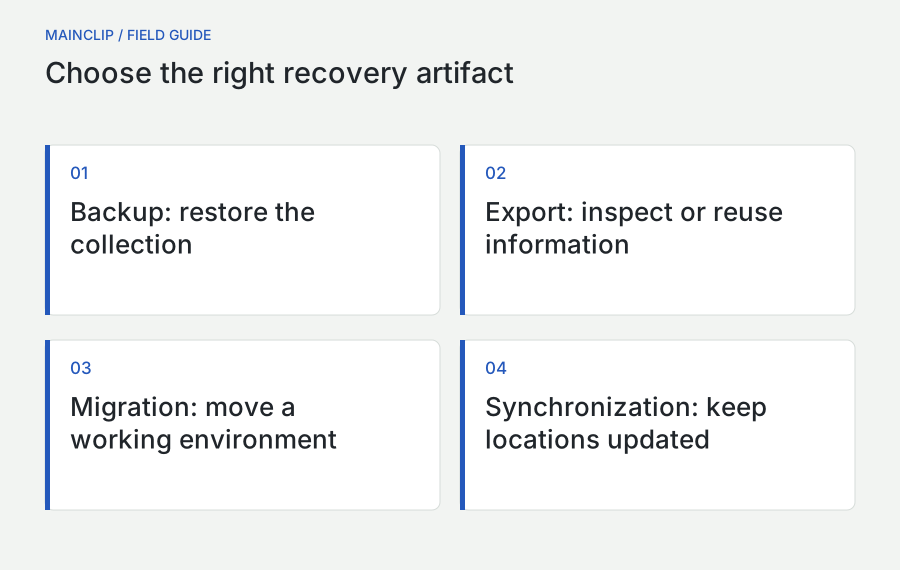
Begin with a sentence describing the event you want to survive. “I want my saved responses on a replacement Mac” is different from “I need yesterday's version of my collection” or “I want a readable list of links if I stop using this app.” Each goal suggests a different artifact. A restore-ready archive supports the first. Dated generations support the second. A readable export can help with the third.
Also define the acceptable gap. If you create a manual backup every Friday, a Thursday failure may leave almost a week of new history outside that backup. Whether that is acceptable depends on the collection. A small library of stable templates changes slowly. A research-heavy week can create important new material every hour. Choose a schedule according to the cost of reconstruction, rather than because a particular interval sounds professional.
Next, decide where the recovered data must work. Restoring on the same Mac tests archive readability. Restoring on another Mac also tests whether attachments and references remain usable outside the original environment. A collection that looks correct on the source machine can still depend on a source-only file location. Your verification needs to match the actual failure you are planning for.
Finally, identify material that belongs in a primary project document. A clipboard collection can be an excellent working aid, but a finished contract, approved procedure, or final design should have its own authoritative home. Preserve the project file as well as the useful clips. That division makes clipboard recovery valuable without making it the sole protection for every important piece of work.
Distinguish backup, export, migration, and synchronization
| Tool or artifact | Main purpose | Question it does not answer by itself |
|---|---|---|
| MainClip local backup | Restore saved clips, collection information, and available archived attachments | Is there a separate copy if this disk fails? |
| JSON or CSV export | Read or process exported clip information outside the app | Can this file recreate the complete working collection? |
| Whole-Mac backup | Recover broader files and machine data | Has this particular app's recovery been tested? |
| Migration workflow | Move work to another Mac | Will later changes continue transferring automatically? |
| Synchronization | Keep locations updated according to a service's rules | Can an older state survive an unwanted deletion? |
MainClip's local backup is a package with the .mainclipbackup extension. Its implementation stores a manifest, clip information, collection definitions, and copies of attachments that can be archived. This is different from its JSON and CSV exports. A file that opens in a spreadsheet can be useful for inspection, but readability alone does not make it a complete restore archive.
MainClip's local storage should not be presented as iCloud synchronization. Copying a backup to another location is a transfer you perform; it does not create a live connection between two histories. If you continue working on both Macs, their later changes should be treated as separate until you deliberately reconcile them through a supported process.
Keep these artifacts named distinctly. A folder containing “MainClip readable export” and “MainClip restore backup” is less ambiguous than two files named “backup final.” When you return months later, the name should tell you which app operation created the file and which recovery task it is intended to support.
Inventory the collection before making an archive
Take a small sample of the material you care about. Choose a text clip, a link, an image, a file attachment, and an item with meaningful tags or collection membership. If your history contains no files or images, say so in your recovery notes. The sample should represent real usage, not every possible feature. A backup test can be short while still being purposeful.
For each sample, record a distinctive non-sensitive search phrase or title and the result you expect after restoration. For example: a reusable response should paste as the expected text; a link should open the intended page; an image should display at the expected dimensions; and a PDF should open as the actual document. A thumbnail alone is not enough evidence for the file test.
Check whether relevant source files are currently available. Connect a required drive and make sure the file opens before relying on it. MainClip's archive can include attachments it can access, but a filename or preview does not prove the underlying file exists. An unavailable file cannot be recreated simply by backing up the metadata that describes it.
Review the collection for sensitive material before creating additional copies. This is not an instruction to delete records blindly. It is a decision about scope and destination. If a clip contains a private token or a customer's personal information, adding it to a backup creates another place that needs appropriate protection. Make a deliberate retention choice and preserve anything required in its proper system.
Write a brief inventory note outside the archive: date, source Mac label, application version, sample identifiers, and any known limitations. Use a neutral machine label rather than a serial number if the note might be shared. This note turns a mysterious package into a documented recovery point without exposing the full contents of the history.
Create a manual MainClip backup
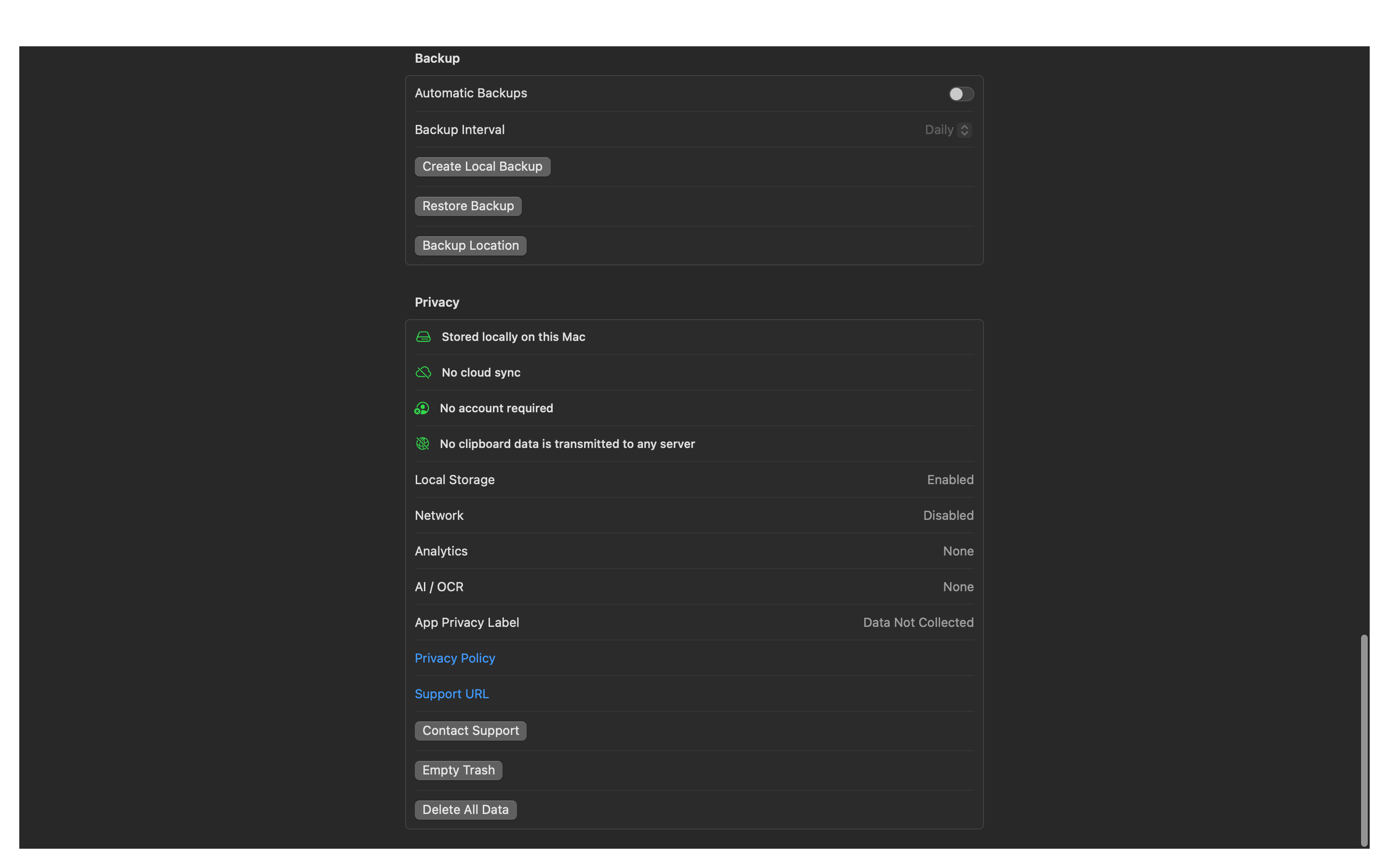
Open MainClip's settings and locate the backup controls. The current interface provides a manual backup action, a restore action, automatic-backup settings, and access to the automatic-backup location. Labels may be localized. Choose the action for creating a local backup, rather than the separate JSON or CSV export controls.
Select a destination that you recognize and can find again. Use a dated name such as MainClip-work-2026-10-02.mainclipbackup. If you are capturing a state before a significant change, add a short purpose, such as “before-move.” Do not overwrite the only known-good recovery point merely to avoid having two files. Dated names make the difference between intentional generations and accidental replacements visible.
Allow the operation to finish and watch for an error. A save dialog closing is not, by itself, a restore test. Find the resulting package in the chosen folder and confirm that its name and modification time match your action. If the operation reports a failure, keep the old backup and address that failure before proceeding with a migration or cleanup.
- Prepare the representative sample and save your inventory note.
- Use MainClip's local backup control.
- Choose an unambiguous destination and a dated archive name.
- Wait for completion and inspect any error message.
- Locate the completed package without opening or altering its internal files.
- Make a separate protected copy and perform the restore test described below.
A backup package should be handled as a whole. Do not copy only a manifest or only the attachments folder because one part looks sufficient. The package's internal relationships are part of the restore format. When transferring it through a tool that treats packages as directories, confirm that the entire package arrived rather than assuming the visible name represents a complete copy.
Keep the source collection intact until verification is finished. Creating a backup is a preparation step, not permission to erase the original immediately. That distinction is particularly important when moving to another Mac, where opening one text clip can create a false sense that every attachment and collection has moved successfully.
Choose a location that protects against the intended failure
An archive beside the live data is useful for some mistakes, but both can disappear with the same device. If your goal includes recovery after losing the Mac or its internal drive, keep a separate copy in an appropriate independent location. Independence matters more than the folder name. Two folders on the same failing drive do not protect against that drive's failure.
Use storage approved for the information in the collection. A personal external drive may be unsuitable for company material, while a shared team folder may expose private snippets to people who do not need them. Choose the destination with the contents in mind. Do not upload an entire clipboard archive to a public file-sharing link simply because it is convenient.
Make sure you can access the backup without depending solely on the Mac you are preparing to replace. If an encrypted drive requires a password stored only on that Mac, the recovery plan has a circular dependency. Keep the necessary access information in a suitable independent place. Test access from the intended recovery environment before you rely on it.
Apple documents password-protected storage in Disk Utility and warns that its erase-and-encrypt procedure removes existing contents. Do not follow an erase procedure on a drive containing your only backup. Consult Apple's storage-encryption instructions and preserve existing files before changing a device's format.
Encryption protects access to stored material under the chosen storage system; it does not prove the archive is complete or restorable. Verification and access protection answer different questions. A carefully encrypted empty package remains a poor backup, while a complete package on an openly shared drive can create an unnecessary exposure.
Verify the archive by restoring it
The strongest practical test is a restore into an appropriate test environment. A spare Mac or a separate macOS user account can help you avoid mixing test data with your current working collection. Use an environment you are authorized to use for the material. Do not restore confidential history onto a borrowed computer simply because it is available.
Before restoring into an account that already has valuable MainClip data, make a separate backup of that destination. MainClip's current restore implementation merges archived clips into its database, and conflicts can replace existing records. It also restores collection definitions. Treat restore as a real data-changing operation, not a read-only preview of the package.
Install or open an appropriate compatible MainClip version, then use the restore control to select the complete backup package. Wait for completion. If an error appears, preserve the package and record the application version and exact operation. Do not modify the manifest in an attempt to force acceptance; that can hide the cause and undermine later recovery attempts.
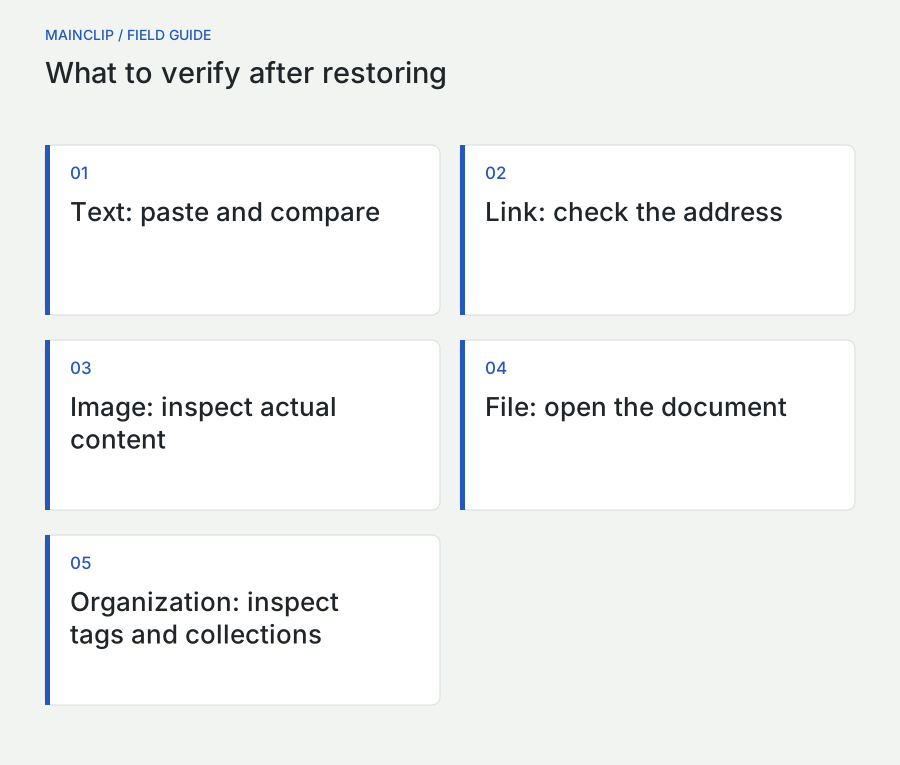
After restoring, find the representative samples using their distinctive identifiers. Open and use them. For text, paste into a disposable document. For a link, check the address as well as the label. For an image, inspect the image itself. For an attached document, open it and verify a recognizable page or section. The purpose is to test usable content rather than a convincing list of titles.
Record the outcome in the inventory note. “Restored on test account; five representative items checked; PDF opened; collection found” is a useful result. “Backup exists” describes a much weaker level of assurance. Include any unresolved items so they are not forgotten when the original Mac is eventually retired.
Check more than the number of entries
| Sample | Verification action | What a superficial check can miss |
|---|---|---|
| Text response | Paste and compare meaningful beginning and end | A title exists but the useful content differs |
| Web link | Inspect the address and open the intended source | A readable label hides an outdated destination |
| Image | Open or copy the actual image and inspect detail | A thumbnail survives without a usable original |
| PDF or other file | Open the file in a suitable application | A source-only path no longer resolves |
| Tagged item | Search the tag and confirm the intended clip | Content arrived but organization is incomplete |
| Collection | Open it and inspect representative membership | A familiar collection name gives false confidence |
Entry counts are useful as a rough signal, but they are not the whole test. A merge can interact with existing records, duplicate content, and retention settings. Compare representative identity and behavior before interpreting a count difference. If the difference is unexpected, investigate it rather than assuming either that nothing is wrong or that the entire restore failed.
Pay particular attention to files copied from removable media or unusual locations. Test with the original drive disconnected only when you have preserved the source and are ready to test independence. If the restored file then fails to open, the test has found a dependency worth resolving before migration. Keep the original drive available until the issue is understood.
Do not use a production conversation as the place to test a restored response. A local draft provides the same evidence without the risk of sending old material. Likewise, do not execute a restored command merely to verify its text. Recovery checks should confirm the content while avoiding unrelated side effects.
Move saved history to another Mac deliberately
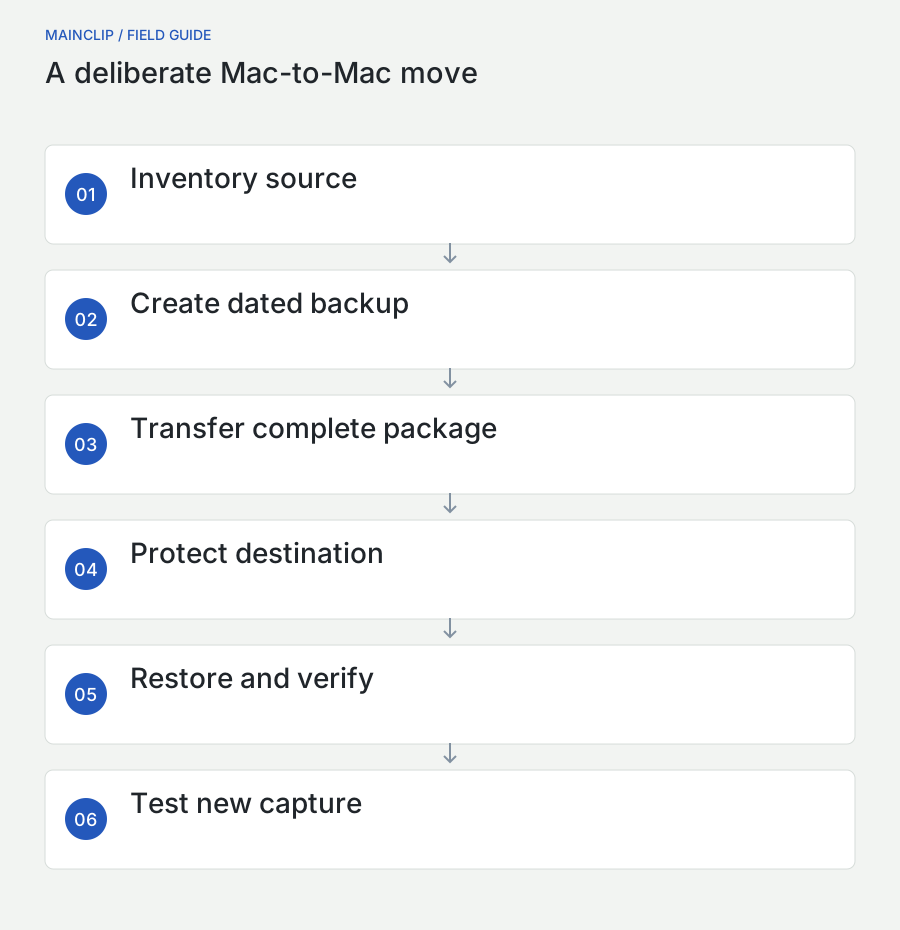
Choose whether you are moving the whole working environment or only the clipboard collection. A whole-Mac migration is appropriate when you want applications, accounts, and broader files to move together. An app-level backup is useful when setting up a clean environment or transferring only the collection. These approaches can complement one another, but they should not be confused.
Apple's Migration Assistant transfers documents, applications, accounts, and settings, and can use a Time Machine backup as a source. Apple also states that it does not delete the old Mac's information or replace the new Mac's operating system. Follow the current Migration Assistant instructions for the machine-level procedure.
For an app-level move, create and verify the source archive first. Transfer the complete package through a suitable private channel or storage device. On the destination, protect any existing collection, restore the archive, and repeat the sample checks. Review application settings afterward rather than assuming every preference or permission traveled with the content.
Test new capture as well as old retrieval. Copy a fresh harmless marker on the new Mac, find it in MainClip, copy it back, and paste it into a disposable document. Then test the retrieval shortcut and the monitoring behavior you intend to use. A successful restore of old clips does not automatically verify a new machine's ongoing capture configuration.
Keep the old Mac or its protected backup available until the acceptance checks are complete. Do not erase it immediately after seeing a familiar collection name. When the migration is accepted, decide which Mac is the active working source. Continuing to collect important material on both without a reconciliation plan creates two diverging histories rather than a completed move.
Use Time Machine as a broader recovery layer
Apple describes Time Machine as a way to back up a Mac and restore files to the same or another Mac, using supported backup storage. Its setup documentation also explains the backup destination and available options. See Apple's Time Machine guide for the current system-level steps.
A MainClip archive and a whole-Mac backup serve different scopes. The archive gives you a recognizable app-level recovery artifact. The broader backup can protect other work that the archive does not contain: project documents, settings elsewhere on the Mac, and other application data. Having both can make recovery more flexible, provided each is actually created and checked.
Do not assume a folder is protected just because Time Machine is configured. Confirm that the intended destination is connected and that the relevant backup has completed. Review exclusions through the supported system interface. If you keep manual archives on an external drive, understand whether that location is included in your broader backup plan rather than making an assumption based on its proximity to the Mac.
For a recovery rehearsal, restore a harmless test file through your broader backup process and restore representative MainClip data through its app-level archive. You are checking two paths, not proving that one replaces the other. Record which path you would use for a missing clip, a failed internal drive, or a new computer.
Keep the instructions short enough to use under stress. A note saying where the protected archive lives, which app opens it, and what samples to verify is more useful during a failure than a complex plan nobody has practiced. The best recovery document is one that another authorized person could follow without guessing.
Understand automatic backups and their limits
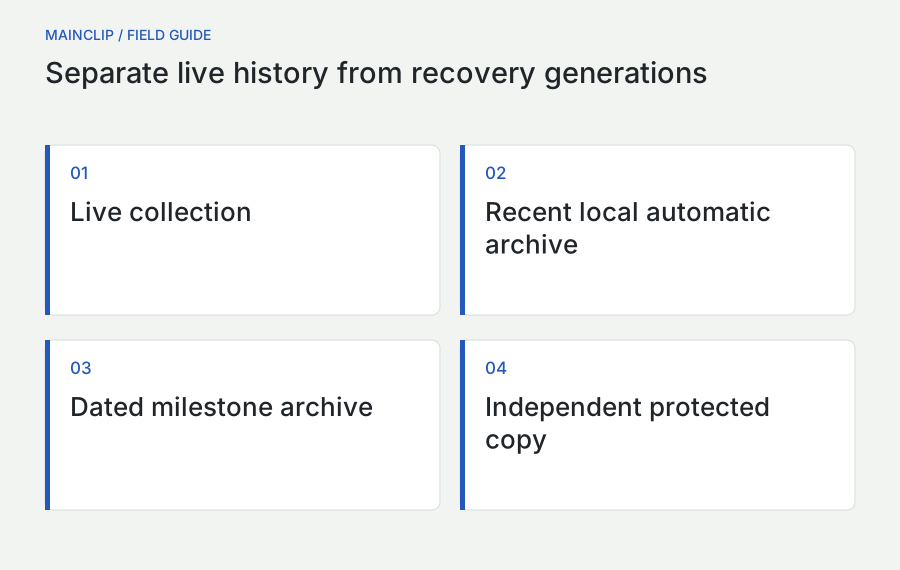
MainClip provides automatic-backup intervals such as daily, weekly, and monthly. In the current implementation, the automatic archive is written to a fixed local backup location and filename. This is a convenient recent recovery artifact, but it should not be mistaken for an unlimited sequence of dated historical generations.
That distinction matters after an unwanted change. If a later automatic backup contains the changed state, it may no longer represent the earlier state you wanted. Keep a dated manual archive before a major cleanup, a migration, or a substantial reorganization. The manual archive gives that event its own recovery point instead of relying on the timing of the next automatic run.
Automatic work also depends on the application being able to run and access its data. A selected interval is not a promise that an archive exists at every wall-clock deadline regardless of machine state. Use the backup-location control to inspect the actual artifact and its date. Verify the outcome periodically instead of treating the toggle as proof of ongoing protection.
Choose a schedule you can explain. If your reusable library changes only occasionally, a manual archive after meaningful edits may be easy to remember. If you actively collect research every day, an automatic interval plus dated milestone archives can be more appropriate. The important relationship is between your changes and the recovery points that preserve them.
A local automatic backup does not remove the need for a separate copy when device loss is part of the risk. Include it in a suitable broader backup arrangement or create deliberate off-device archives. A second location must be checked for freshness, completeness, and access; merely intending to copy the file later does not create that protection.
Design a simple retention policy
Retention has two layers: how long MainClip keeps live history and how long you keep backup generations. Shortening the live history does not necessarily remove older copies from existing archives. Conversely, retaining a large live history does not protect it from a device failure. Decide the two policies together without treating them as interchangeable controls.
A practical personal policy might retain a recent working backup, a previous known-good backup, and a dated archive before a major transition. That is an example, not a universal numerical rule. Someone handling confidential client material may need a stricter organizational policy. Someone maintaining a small set of harmless templates may need very little historical depth.
Write down why each retained generation exists. “Current working state,” “before moving to the new Mac,” and “before removing the old research project” are meaningful reasons. A folder full of “final,” “final-new,” and “really-final” packages is difficult to manage and easy to misinterpret. Names should support deletion decisions as well as restoration.
When retiring a generation, first confirm that another tested recovery point covers the work you still need. Do not remove the only archive containing a finished project's useful templates simply because its date is older. At the same time, do not retain sensitive material indefinitely out of habit. Retention should serve a defined purpose.
For team-owned information, use the team's approved retention and access rules. A personal clipboard backup should not become an unofficial archive of records that belong in a controlled business system. Move approved reusable content into its proper maintained location, and let the clipboard remain a working tool rather than a hidden records repository.
Protect the archive as carefully as the original history
A clipboard archive can contain an unusually mixed set of information. An innocuous collection of links may sit beside a private address, an internal image, or a temporary secret copied during an unrelated task. Review the destination's audience with that mixture in mind. The package format is not a guarantee that its contents are encrypted or safe to distribute.
Use a private location with access appropriate to the data. If you place the package on a shared drive, verify who can read it rather than relying on an obscure filename. If you transfer it through a messaging service, understand that you may create additional retained copies outside your normal backup arrangement. Prefer an approved transfer method that keeps ownership and cleanup clear.
Keep archive passwords or storage credentials separate from the archive itself. A text file beside an encrypted volume containing its password defeats much of the intended access separation. Use your established credential-management process, and make sure recovery does not depend on a single unavailable device or person.
Do not send a full archive as a routine support attachment. A support team generally needs the app version, the operation that failed, the error, and a minimal synthetic reproduction. If deeper examination is necessary, first establish a suitable private process and the minimum material required. An entire clipboard collection should not be the default diagnostic sample.
After a test on a temporary account, clean up that test environment according to the sensitivity of the data and your normal device-management practice. The rehearsal created another usable copy. Keep it only if it has an ongoing purpose, and record its existence so that later retention decisions include it.
Use readable exports for a different purpose
MainClip's JSON and CSV exports can help you inspect or reuse clip information outside the app. A spreadsheet can make a list of titles or links easier to review. A structured export can support an authorized conversion workflow. These are useful capabilities, but neither should be casually renamed “the complete backup” without testing the intended restore path.
Ask what the receiving tool needs. If a colleague needs five approved links, provide those links in a small document rather than handing over an entire history export. If you need a reference list for a project, review the selected information and remove unrelated records before sharing it. Export convenience does not establish that every exported item belongs in the destination.
Compare a readable export with your inventory sample. Does the information you need appear? Are dates understandable? Do filenames refer to actual accessible files or merely describe them? If a field is blank, determine whether the source never contained that information. Do not fill missing provenance with guesses merely to make a spreadsheet look complete.
Keep the original export unchanged when experimenting with conversion. Work on a copy and document any transformations. This makes mistakes reversible and preserves an audit trail for your own work. For example, changing date formats in a spreadsheet should not alter the only copy of the original exported information.
When long-term readability is the goal, a small curated document can be more useful than a raw dump. Explain the purpose of the collection, include the links or text that matter, and record context that a future reader needs. The restore archive preserves the app's working collection; the curated document preserves the meaning of selected material.
Choose the authoritative state before combining histories
The most difficult restore decision often has nothing to do with a damaged archive. It occurs when both the archive and the destination contain legitimate work. Perhaps the old Mac holds a carefully organized library, while the new Mac already contains three days of new clips. Treat this as a reconciliation problem. First preserve both states in separate dated backups, and write down which material exists only on each side.
Do not interpret the word “merge” as a promise that every field from every version will be combined in the way you prefer. MainClip's current implementation resolves conflicting clip records during restoration. An archived record can therefore affect an existing item rather than simply adding a visibly separate duplicate. Restored collection definitions also deserve review. The safe starting point is to know which source you intend to trust for overlapping material.
For a small difference, a human-readable checklist can be sufficient. List the destination-only clips that matter, their purpose, and a way to find them. Preserve approved content in a separate working document where appropriate. Then restore the chosen archive and check those destination-only items alongside the representative archive samples. Do not rely on an overall item count to prove that every meaningful variation survived.
For a large or confusing difference, rehearse in a separate test environment before touching the working destination. Compare the result with both inventory notes. If the desired reconciliation is not clear, ask for product-specific help with synthetic examples of the conflict. A careful question about two competing versions is more productive than importing archives repeatedly and trying to reconstruct the order afterward.
A concrete conflict example
Suppose a response template has the same underlying identity in an older archive and the current destination, but its tags changed last week. Restoring the older record may bring back older organization. The text can look correct while the retrieval workflow changes. Your verification should therefore include the tags or collection behavior that mattered, not just the first sentence of the response.
Now suppose the two Macs contain completely different useful clips. Even then, preserve both backups before testing. Different content is easier to reason about, but it does not make the operation read-only. Retention limits and application settings still affect the resulting working environment. Write down the desired outcome in terms of recognizable items, then inspect those items after the operation.
Once the combined result is accepted, create a new dated backup of that accepted state. Keep the earlier inputs until you are confident the reconciliation meets your needs. Label the new archive by its purpose, such as “accepted-after-move,” so that a later recovery does not accidentally restart from one of the incomplete inputs. This closes the decision with a clear recovery point.
Respond to restore problems without making them worse
If the package is not accepted, first confirm that you selected the complete .mainclipbackup package rather than a JSON export or one of its internal files. Check that the transfer finished and that the storage device is accessible. Record the exact error and versions. These basic observations often narrow the problem without changing the archive.
If text restores but a file fails to open, distinguish missing file data from a general restore failure. Look at your inventory note: was that attachment available when the backup was created? Can the original still be opened? Does the archive's source machine still have the working file? Preserve every available copy while investigating, and avoid deleting a source-only file to “clean things up.”
If restored entries appear different from the destination's earlier entries, remember that restoration changes data and can resolve conflicts using archived records. Preserve the destination backup you made before testing, but do not treat importing it again as an undo command: restore merges data, so clips and collection definitions introduced by an earlier restore can remain. Rehearse recovery in a separate test environment and seek product-specific help before trying to reverse changes in a working collection. Do not repeatedly import several archives in an arbitrary order hoping that the best version will emerge. Decide which state you want and document the sequence.
If storage is full or an operation is interrupted, keep the previous known-good archive. Create a new destination when retrying rather than replacing the only verified copy. Confirm completion before transferring or opening the new package elsewhere. A partial or failed attempt should have a clearly different status from a tested recovery point.
For unresolved cases, contact MainClip support with the smallest useful description: source and destination versions, archive creation date, operation, error, and which representative samples succeeded. Mention whether it was a manual or automatic archive. Avoid private content unless a suitable support process explicitly requires it.
A worked migration: a researcher's replacement Mac
Consider a fictional researcher, Priya, moving from an older Mac to a new one. Her history contains article links, interview-planning snippets, a diagram, and a PDF copied from an external drive. She wants the collection on the new machine without turning the move into an attempt to preserve every temporary item she has ever copied.
She first identifies five representative clips and writes their search phrases in a private migration note. She opens the PDF while the external drive is connected, checks the diagram, and copies the reusable text into a disposable document. She removes nothing at this stage. Her first task is to establish a working source state and a clear verification target.
Priya creates a dated manual MainClip archive and saves an independent protected copy. She also confirms that her broader Mac backup is current. These are separate artifacts with separate purposes. She does not assume that the local automatic archive provides several historical versions, and she does not rename a CSV export as a restore package.
On the new Mac, she protects the small collection already created during setup, then restores the archive. She checks each sample, including opening the PDF without relying on the old Mac's file location. She tests a new harmless capture and the retrieval shortcut. Only after those checks does she mark the move complete in her note.
She keeps the old recovery point until the new setup has been used successfully for a reasonable observation period. She then decides which archive generations still have a purpose. The result is a documented transition: known source state, tested destination state, and clear ownership of future changes. Nothing depends on remembering whether a familiar-looking thumbnail was enough.
Practice recovery before you need it
A rehearsal can use entirely synthetic material. Create a short text clip, a harmless link, a small image, and a disposable file. Tag or organize them in a recognizable way. Make a manual archive and restore it into an appropriate test environment. Because the material is invented, you can focus on the mechanics without exposing private work.
Write down every point where you had to guess: finding the backup control, locating the package, choosing the destination, or deciding whether a file restored correctly. Improve the recovery note immediately. The most useful rehearsal outcome is often a clearer instruction, not a new tool. A plan that requires you to remember a hidden folder is weaker than one with an explicit path and purpose.
Measure completion by tasks rather than speed. Can you find the restored clip? Can you paste its text? Can you open the actual attachment? Can you identify the collection? Can you capture a new marker afterward? Avoid publishing a recovery-time promise based on one tiny test; a larger history or a different storage device can behave differently.
Repeat the rehearsal after a meaningful change to the workflow, such as replacing the storage device, changing application versions, or moving to another Mac. You do not need to turn every week into a disaster exercise. You need enough evidence that the path you intend to use still works in the environment that now exists.
Questions to settle before retiring the old Mac
Is a backup on the same Mac enough?
It can help with some local mistakes, but it shares important failure conditions with the live collection. If the Mac is unavailable, both may be unavailable. For device-loss recovery, keep a separate appropriately protected copy and verify that you can access it independently.
Does restoring create continuous synchronization?
No. A restore applies archived data at a point in time. Later work on two Macs can diverge. Treat the restored destination as a new working state and decide where subsequent changes should happen. Do not infer a cloud relationship from a successful one-time transfer.
Can a backup recover a clip that was never captured?
No archive can contain material absent from its source at creation. If monitoring was paused, a source was excluded, or the item had already been removed, look for the original document or another legitimate copy. A backup is a record of what was available to preserve, not a reconstruction service.
Should I keep every generation forever?
Keep generations for a defined recovery purpose and according to the sensitivity of their contents. More copies can improve recovery options while increasing storage and access-management work. A small set of understood, verified archives is easier to manage than an unlimited pile of untested packages.
Before retiring the old Mac, confirm three things: the destination collection works, a separate recovery point is accessible, and the next backup responsibility is clear. Those checks make the move complete. The original can then be handled through the appropriate device-retirement process without relying on an untested assumption about a file called “backup.”