

Copy from the source when possible, use OCR when needed
To extract text from a screenshot on a Mac, open the image in a tool with text recognition, select or recognize the text, copy the result, and compare it with the image before using it. Preview's Live Text can handle a quick selection when supported. MainSnap provides local text recognition inside its screenshot editor, along with Copy text and an approximate Copy columns option. In either case, recognition creates a draft transcription, not a guarantee of exact characters or original layout.
Before running OCR, try the simpler route: can you copy the actual text from the original app or document? If the source offers selectable text, a text export, or a table download, that often preserves more information with less reconstruction. OCR is valuable when the content is only available as pixels, such as a screenshot sent by a colleague, an image of a dialog, or an interface that does not expose a useful text selection.
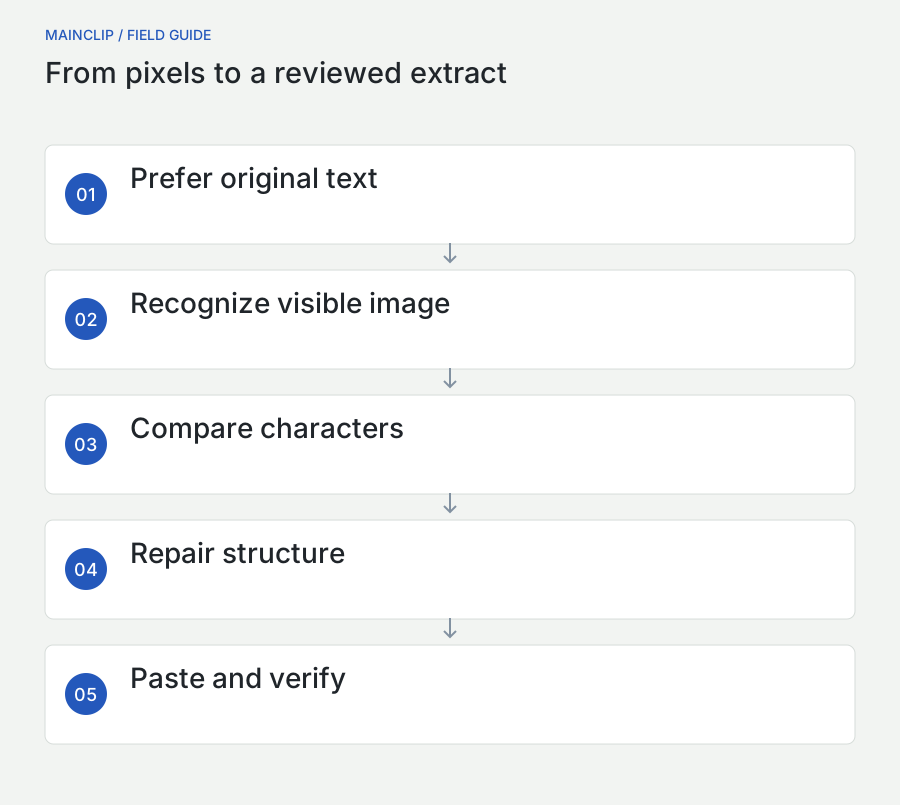
Think of the workflow as three tasks. Recognition turns visible marks into candidate characters. Review establishes whether those characters are correct for your purpose. Reformatting makes them useful in the destination. A tool can complete the first task quickly while leaving important work in the other two. Keeping those tasks separate helps you choose the right method and avoids treating a clean-looking paragraph as proof of an accurate transcription.
This guide uses fictional identifiers and small invented examples. It covers ordinary screenshots, short extracts, code-like text, multilingual content, and simple tables. It does not promise faithful reconstruction of arbitrary spreadsheets, handwriting, complex document layouts, or every language. The goal is a reliable process that saves retyping while preserving the details that matter.
Choose the shortest reliable route
Start with the amount of text and its intended use. A single sentence for a note needs a different workflow from a table of identifiers being imported into a system. A quick local selection may be enough for the sentence. The table needs structure checks, character review, and attention to how the spreadsheet interprets pasted values. The extraction tool should fit that task rather than become an extra ritual for every copy operation.
| Situation | Useful starting point | Review priority |
|---|---|---|
| Text is selectable in the original app | Copy the original text | Formatting and completeness |
| A short sentence exists only in an image | Preview Live Text or local OCR | Words, punctuation, and missing lines |
| A screenshot is already being edited in MainSnap | Recognize text in the editor | The visible flattened image and result |
| A simple table is visible in a screenshot | Original table export first; approximate columns otherwise | Cell boundaries, row order, and data types |
| Code, commands, or account identifiers | Original source whenever available | Every meaningful character before use |
Do not screenshot text merely to copy it
If a document already contains real text, creating a screenshot and recognizing it adds an avoidable conversion. You lose information about characters, structure, and links, then ask software to reconstruct part of it from appearance. That can be reasonable when the source is unavailable or inaccessible in the current workflow, but it should not be the automatic first step.
For a PDF, inability to select text can also be a tool or permission issue rather than proof that the page is only an image. Apple suggests checking Preview's Text Selection tool and whether the PDF requires authorization. Consult Apple's guidance on copying text from PDFs before creating a workaround. Respect the document's access restrictions and use an authorized source.
Choose the smallest useful extract
A full screen can contain many unrelated text blocks: menus, headings, sidebars, captions, and the paragraph you actually need. Recognizing everything increases the amount you must sort and review. When making a new capture, select the relevant region with enough surrounding context to identify it. For a received image, use an appropriate selection method or prepare a separate focused copy in an image tool if needed.
MainSnap supports area capture but does not include a cropping tool in the released feature set described here. Do not spend time searching its editor for a crop command that is not there. If the source is still available, a tighter capture is often the quickest option. If it is not, use the image you have and review the extra text deliberately.
Use Preview Live Text for a quick extraction
Apple's Preview guide describes copying text from an image by dragging over the text, Control-clicking the selection, and choosing Copy Text. If selection is unavailable, check Tools → Text Selection. Live Text availability varies by language and region. These are Preview features, not MainSnap controls. See Apple's Live Text instructions for Preview.
Open a harmless image containing a short paragraph and select only the sentence you need. Paste it into a plain-text scratch document. Compare the beginning, middle, and end with the image, then read the entire sentence. That small routine catches missing words, punctuation changes, and a selection that accidentally skipped the final line. If the result looks correct, move it to the intended destination.
Why a scratch document helps
A temporary text area separates recognition quality from the destination's formatting. If you paste straight into a rich document, the app may change typography, spacing, or paragraph structure in ways that make it harder to see what recognition actually returned. A plain-text view lets you inspect the characters and line breaks first. Then you can apply the destination's formatting deliberately.
The scratch document is also a place to mark uncertainty. If one character is ambiguous, note it instead of silently guessing. For example, a fictional reference “ABO-104” may contain the letter O or the digit zero. The surrounding context may resolve it, but if it does not, ask for the original text or a sharper source. A neat transcription containing an invented character is worse than an explicit uncertainty.
When a quick selection stops being quick
If the text spans several columns or many screens, repeatedly selecting fragments can become error-prone. Consider whether a better source is available: the original document, a table export, or an accessible text version. If you must work from images, process them in a known order and preserve that order in your notes. A method that works well for one sentence may be inefficient for a long document.
Do not assume that a failure to select one part of an image means all local OCR will fail. The source may contain small text, low contrast, unusual layout, or a language the current method handles poorly. Improve the source or try a method appropriate to the task, while keeping the original image available for comparison.
Extract text inside MainSnap
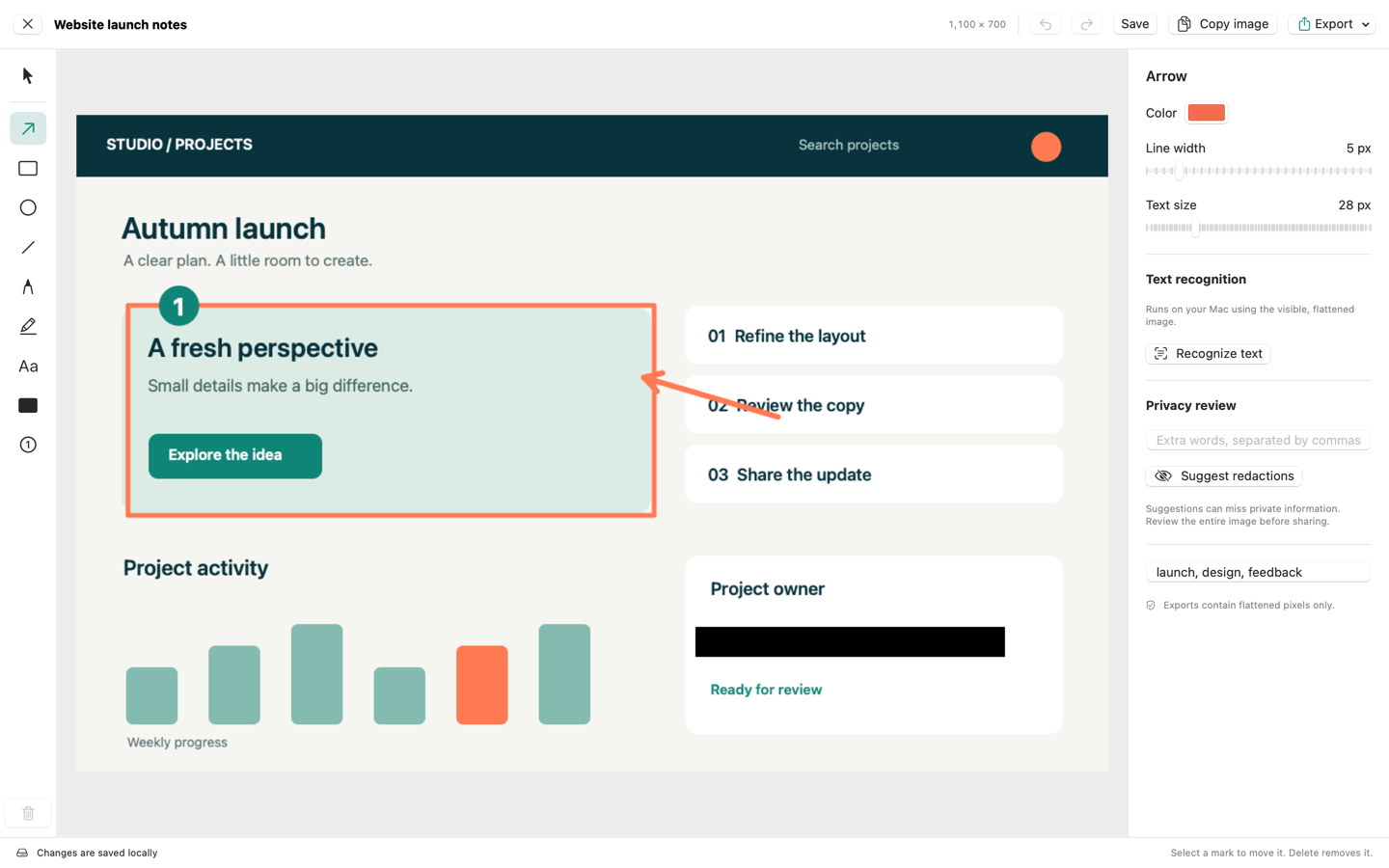
Open the relevant capture or imported image in MainSnap's editor. In the Text recognition section, choose Recognize text. The recognized result appears in the editor, and Copy text puts the text on the clipboard. Copy columns provides an estimated tab-separated arrangement for suitable content. These controls are intended to help move visible text into another app; they do not turn the screenshot into the original editable document.
MainSnap performs recognition on the current visible, flattened image. That includes the effect of its annotations and solid redactions. If you cover a region before recognition, do not expect recognition to recover the hidden original through the editor. When the image is edited, its earlier recognition result is invalidated so the next result can reflect the current image. Run recognition again after changes that affect the text you need.
- Open the capture and decide which text you intend to extract.
- Make any privacy edits needed before the extraction.
- Choose Recognize text and wait for the result.
- Compare the result with the visible image.
- Use Copy text for ordinary text or Copy columns for an approximate tabular handoff.
- Paste into a suitable scratch area and review the destination's interpretation.
- Correct only after checking the source, and retain useful context with the extract.
Local processing is a location claim, not an accuracy score
MainSnap uses Apple's Vision framework with accurate recognition, language correction, and automatic language detection. Apple documents Vision text recognition as on-device processing and describes both fast and accurate paths. The framework still returns recognized candidates that need review. See Apple's text-recognition documentation.
For a practical user, local processing means the recognition step does not require uploading the screenshot to a cloud OCR service. MainSnap's application has no cloud account or networking service for this task. That is useful for controlling the route your screenshot takes. It does not establish that every language, font, or tiny character will be interpreted correctly, and it does not control what happens after you paste the result into another application.
Keep MainSnap and MainClip roles clear
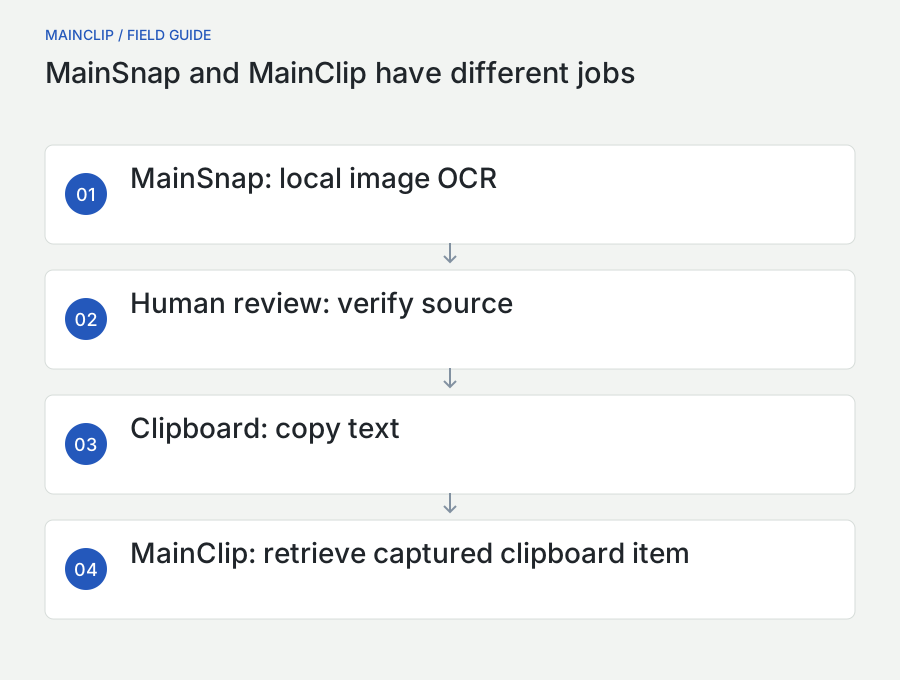
MainSnap recognizes text from images. MainClip manages supported clipboard content locally when its monitoring is enabled. MainClip does not perform OCR, AI analysis, or cloud synchronization. Used together, MainSnap can produce a reviewed text extract and MainClip can help you retrieve that copied text later. The recognition and retrieval steps remain distinct.
For example, you might extract an error message in MainSnap, correct a misread punctuation mark after comparing it with the image, and copy the reviewed result. If MainClip captures that clipboard item, you can reuse it in a support note. Keep a source reference where it is useful so the text does not become an unexplained fragment that somebody mistakes for an independently verified record.
Improve the input before trying to repair the output
OCR has to work with the pixels it receives. A screenshot of tiny text inside a scaled-down chat preview gives it less information than the original image. Before adjusting the text manually, ask whether you can obtain the original screenshot or recapture the source at a clearer size. One better input can save many individual corrections.
When capturing a web page or document, enlarge the relevant content within the source app if that is appropriate. Keep the text sharp and the lines fully visible. Avoid cutting off the tops or bottoms of characters at the capture boundary. Remove selections or overlays that obscure the words. A focused, readable screenshot is easier for both software and the human reviewer.
Do not confuse enlargement with new detail
Enlarging an already small image can make it more comfortable to inspect, but it does not restore characters that were never captured clearly. A preview may appear larger while still containing the same ambiguous samples. Use enlargement as a viewing aid, and prefer a better source when exact transcription matters. Avoid claiming that a simple upscale has made a damaged image reliable.
Similarly, saving a compressed image as PNG prevents an additional lossy encoding step but does not undo existing compression damage. For a new capture of interface text, retain a strong source image and avoid repeated conversion before recognition. If the screenshot arrived through a messaging platform, ask for the original attachment rather than working from another screenshot of its thumbnail.
Control the amount of surrounding content
A screen full of sidebars and panels can produce text in an order that differs from the order you intended. Isolating the relevant paragraph reduces the chance that a menu label gets inserted into the middle of a sentence. For a table, include the column headings if they establish meaning, but exclude unrelated panels that can be mistaken for extra columns.
If a long page requires several captures, preserve sequence and a little intentional overlap for your own review. Mark where each extract begins and ends. Do not blindly concatenate recognized text and assume there are no repeated or missing lines. Overlap helps you verify continuity, but it also creates duplicate material that must be handled carefully.
Review characters according to the cost of an error
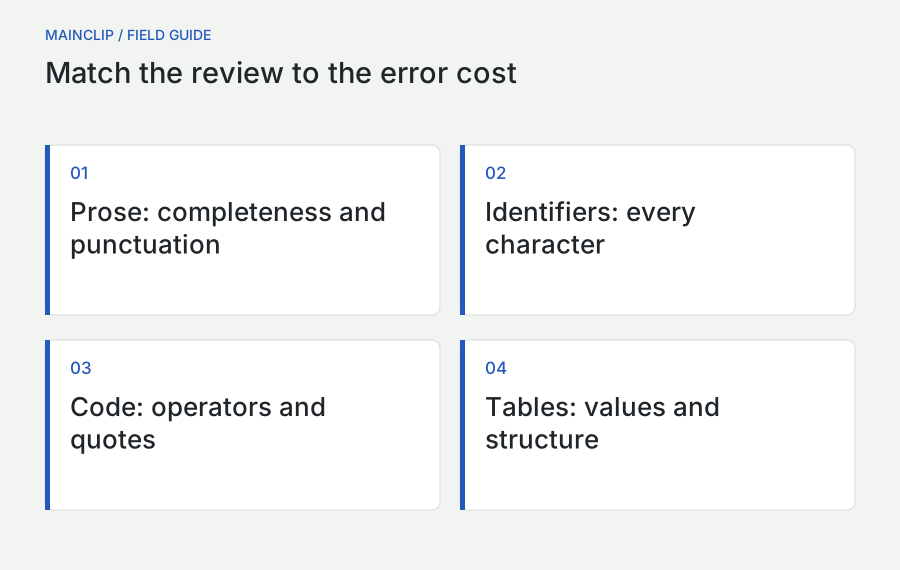
Not every OCR error has the same consequence. A missing comma in a casual note may be easy to notice later. A mistaken digit in a reference number can point to the wrong record. A changed operator in a command can alter its meaning. Decide what needs character-by-character review before using the extracted text.
Start with visually similar characters: zero and capital O, one and lowercase l, uppercase I, rn and m, punctuation beside narrow letters, and different dash characters. Then check spacing and line breaks. Finally, read for meaning. A result can be grammatically plausible while still misrepresenting the source, especially when the original contains unusual names, codes, or technical terms.
| Extracted content | What to compare closely | Useful destination practice |
|---|---|---|
| Ordinary prose | Missing lines, punctuation, and unusual names | Review in plain text before styling |
| Identifiers | Every character and leading zero | Keep as text rather than a number |
| Dates and amounts | Separators, sign, units, and surrounding labels | Confirm intended interpretation before calculations |
| Commands or code | Quotes, operators, slashes, spacing, and case | Review without executing the pasted content |
| Addresses and links | Domain, punctuation, and omitted characters | Confirm against the source before using |
Use two passes for important extracts
During the first pass, compare literal characters with the image. During the second, check the meaning and completeness of the result. These passes catch different errors. A line-by-line comparison may reveal a missing minus sign; a meaning check may reveal that the copied sentence lacks the heading that explains which system it applies to.
For a short but important identifier, read from right to left during one comparison to break the habit of recognizing the whole pattern instead of inspecting each character. For longer text, compare one line at a time and keep your place. These are review techniques, not substitutes for a better source when the image is unreadable.
Preserve uncertainty instead of inventing certainty
If a character cannot be resolved from the image, do not silently fill it in because one option seems likely. Record the ambiguity, ask for the original, or mark the transcription as incomplete. This is particularly useful in research notes, support records, and any workflow where another person may later treat the text as an exact quotation.
When correcting obvious OCR mistakes in a working note, keep the original image available until the task is finished. The corrected text is easier to reuse, while the image preserves the context needed to resolve a later question. You do not need a complicated archive for every copied sentence, but important extracts benefit from a traceable source.
Extract simple tables without pretending they are spreadsheets
A screenshot shows the visual arrangement of a table. It does not contain the original cell types, formulas, hidden rows, validation rules, or complete data model. OCR can recognize labels and values, and a tool can estimate which pieces belong in the same row. That is useful, but it is not equivalent to recovering the original spreadsheet.
MainSnap's Copy columns produces tab-separated text from recognized line positions. It estimates rows and orders detected text from left to right within them. Complex layouts, merged cells, wrapped labels, missing values, and closely spaced rows can confuse that approximation. Use it as a starting point for a small simple table and verify the result against the screenshot before relying on it.
Prepare a small trial before importing the whole table
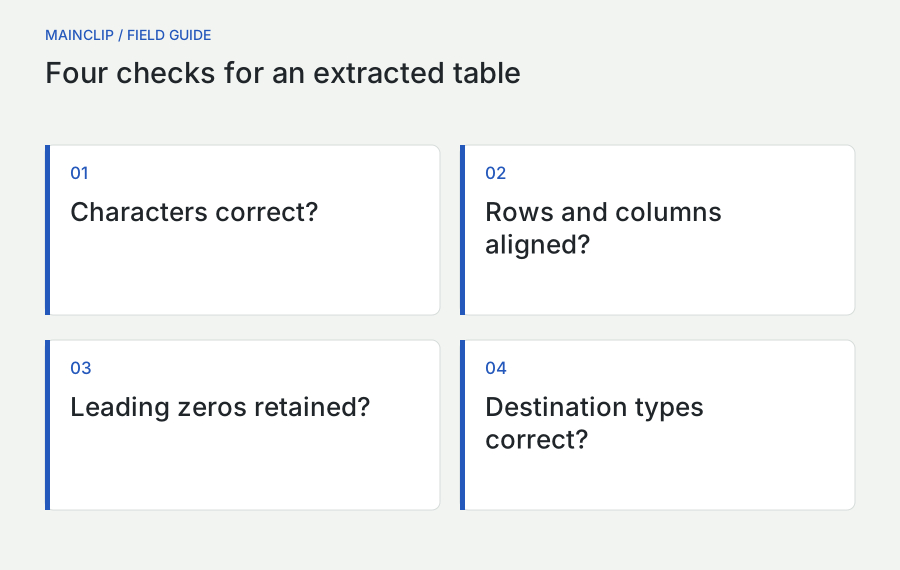
Choose a few representative rows, including one with a blank cell and one with a longer label if available. Paste into an empty area of the destination spreadsheet. Count the columns and compare the row boundaries. Check whether a wrapped label became a new row and whether a blank value caused later values to shift left. A clean first row is not enough to validate the layout.
Keep headers visible during review so each value has a meaning. If the extracted table contains “12” in a column, know whether it represents a count, a percentage, a day, or an identifier. Rebuilding the visual grid without understanding the column meaning can produce a tidy but incorrect dataset. For anything beyond a small manual task, request the original CSV or spreadsheet if possible.
Protect leading zeros and identifiers
Spreadsheet apps can interpret pasted characters as numbers, dates, or formulas. A code such as “00127” may need to remain five characters rather than become the number 127. Apple specifically notes that Numbers can remove a leading zero when it treats a value as numeric and explains using text formatting for such labels. See Apple's Numbers formatting guidance.
Decide the intended type before pasting. Identifiers are usually labels, even when every character is a digit. Quantities used in arithmetic are different. Paste into a scratch table, review how the application interpreted the values, and only then move the cleaned result into a working dataset. Keep untrusted extracted strings out of formula execution paths until you have inspected them.
Validate relationships as well as individual cells
A row can contain perfectly recognized values in the wrong columns. Compare both the characters and the relationships. Does the fictional item code still sit beside its own description? Did a total get inserted as a normal row? Did a repeated header appear halfway through the extract? These checks matter because visual tables rely on spatial structure that plain text does not automatically preserve.
For a small table, count expected rows and columns, compare a few distinctive records, and verify every important value. If a total is visible, it can be a useful additional check, but matching a total does not prove that each row is correct. Two offsetting errors can leave an aggregate unchanged. Use totals as one clue within a broader review.
Repair reading order deliberately
Text recognition identifies visible regions, but a page's intended reading order can be complicated. A two-column article, a sidebar note, a caption, and a footer may all sit near one another. The resulting text can interleave them in a way that looks plausible until you read the paragraph carefully. Do not confuse the order in which text appears in the result with a definitive interpretation of the document.
For a short extract, isolate one logical block. For a longer page, work through sections in their intended order and keep headings with their paragraphs. If you combine extracts, inspect the joins: repeated last lines, missing first lines, duplicated headers, and page numbers inserted into sentences are common things to check. A correct transcription of every individual region can still produce a badly assembled document.
Keep line breaks only when they carry meaning
A paragraph may wrap across several visual lines even though it is one logical paragraph. Pasting those lines into an email can produce awkward breaks. Rejoin them after verifying that no paragraph boundary, list structure, or deliberate line break is being lost. A postal address or a poem needs different handling from ordinary prose.
Hyphens deserve particular attention. A word split at a line ending may need to be rejoined, while a genuine hyphenated expression should retain its hyphen. Do not apply a blanket replacement to every line-ending dash. Read the surrounding words and preserve the source's meaning. For an exact quotation, note any editorial normalization that matters to how the text will be used.
Keep headings and labels attached to their scope
A statement such as “Available from Monday” may be meaningless without the heading that identifies the service or location. When extracting a fragment, preserve enough context to make it useful later. This can be a short source note rather than an entire extra paragraph. The aim is to prevent a reusable snippet from becoming misleading when separated from the image.
For a support note, include which app and screen the message came from. For research, retain a source link or document identifier where appropriate. For an internal procedure, name the version or date if the interface changes often. Context is part of extraction quality even though it is not a character-recognition problem.
Handle languages and unusual typography with care
A multilingual interface is not a guarantee of equal OCR performance across every language or script. MainSnap's interface is localized in twelve languages, while recognition relies on the capabilities of the underlying Apple framework and the actual image. Automatic language detection is helpful, but it does not eliminate the need to check mixed-language passages, unusual names, or technical vocabulary.
Ask someone who can read the source language to review important extracts. A result may look convincing to a reader who cannot assess the script. Check punctuation, direction, spacing, and numbers as well as letters. In mixed right-to-left and left-to-right content, identifiers and punctuation can require especially careful inspection after pasting into the destination.
Separate recognition from translation
OCR transcribes visible text. Translation expresses its meaning in another language. These are different operations, and an error in the first can carry into the second. If you plan to translate an extracted passage, review the source transcription first. Preserve the source image and language context so an uncertain word can be resolved before it becomes an apparently fluent translation.
MainSnap's OCR should not be described as a translation feature. Its recognition result is the text it detected, not a translated or summarized explanation. If you use a separate translation tool, its privacy and accuracy characteristics belong to that separate step. Do not assume that a local extraction makes every later service local as well.
Typography can resemble meaning without preserving it
Decorative fonts, tightly spaced letters, stylized logos, and text on patterned backgrounds can be difficult to transcribe reliably. If the text is a brand name or identifier, use an authoritative textual source when available. If it is an artistic composition, decide whether transcription alone captures what the reader needs or whether the image should accompany it.
For practical testing, include accented characters, punctuation, and one unusual proper name from material you are allowed to use. Compare the result rather than assuming that success on a plain English sentence predicts performance on everything else. A small representative sample tells you more about your workflow than a broad claim that a tool “supports text.”
Keep the extraction route intentional
Text recognition can make private information easier to copy and search. An image that was previously awkward to transcribe may become a clean block of addresses, identifiers, or internal notes. Before extracting, decide where the text belongs and whether the destination is appropriate. Local OCR reduces one transfer step, but the copied result can still leave the Mac through whatever application receives it.
If a screenshot contains information that should not appear in the extract, redact that material in the visible image before recognition or limit the selection to the needed region. In MainSnap, recognition uses the flattened visible image. Review the output to confirm that it contains only the intended material. Do not assume that a later redaction retracts text already pasted into another document or captured by a clipboard history.
Review retention in the tools you actually use
MainSnap can keep local captures and recognized text associated with them. MainClip can retain copied content while monitoring is enabled. A notes app may save the pasted extract, and a document may be included in a backup or synchronization service. These are separate storage choices. Decide which copies are useful, and handle unnecessary ones through the relevant tool's controls.
For an ordinary public error message, long-term retention may be convenient. For a one-time private extract, it may not be. The right practice follows the content and the task. Avoid the vague assumption that closing an OCR window clears every copy, because the clipboard and destination applications have their own lifecycles.
Three worked examples you can adapt
Turn an error screenshot into a useful support note
A colleague sends a screenshot of a fictional error: “Export stopped: reference AB0-127 is unavailable.” Extract the text, then inspect the reference character by character. The third character might be zero, while a similar-looking letter could point support to the wrong issue. Preserve the exact wording once verified and add the action that triggered the error.
The final support note includes the message as text, the app version if known, and the screenshot as visual context. If a character remains unclear, say so and request the original text or a better image. This produces a useful report without inventing certainty. OCR has saved most of the typing, while human review has protected the detail most likely to matter.
Move a small reference table into a spreadsheet
A screenshot shows fictional item codes, descriptions, and counts. First ask whether the source table can be exported. If only the image is available, recognize it and try the approximate column output in an empty scratch sheet. Format the code column as text, then compare row alignment and leading zeros. Check a long description and a blank count because those rows are more likely to reveal structural problems.
After correcting the table against the source, move it into the working sheet with a short note identifying where it came from. Keep the screenshot until the task is complete. Do not describe the result as the original spreadsheet: it is a reviewed reconstruction of the visible data, without the source's formulas or hidden content.
Build a reusable research note from an image
A researcher has an image of a short passage that is permitted to be used in their work. They extract the text, compare punctuation and line endings, and retain a source reference. They separate an exact quotation from their own summary so later reuse does not blur the distinction. Any unresolved word is marked for follow-up instead of silently replaced.
When the note is copied again, its context travels with it. MainClip can help retrieve a copied snippet, but the useful research structure still comes from the author's note: source, extract, and interpretation kept distinct. This avoids the common problem of finding a polished paragraph in a clipboard history and no longer knowing whether it was a quote, an OCR draft, or a personal paraphrase.
Build a representative OCR practice sheet
A small practice sheet helps you decide where recognition saves time in your own work. Create harmless sample content in a document you control: one ordinary paragraph, a short list, a fictional identifier with a leading zero, a few punctuation marks, and a simple three-column table. Include at least one label that wraps onto a second line. Capture the sheet at a readable size and retain the original document as the answer key.
Run your chosen extraction method and paste the result into a scratch document. Compare it with the answer key without quietly correcting mistakes as you go. Mark missing text, changed characters, unexpected line breaks, and structural problems separately. This distinguishes a recognition problem from a layout problem and gives you a concrete basis for deciding which extracts need the closest review.
Make the exercise match your real material
If you mostly copy error messages, include error-like punctuation, file paths, and identifiers. If you work with multilingual research, include representative scripts and accents that you can review accurately. If you move small tables into spreadsheets, include blanks and codes that must remain text. Do not claim that one clean paragraph proves reliability on a completely different type of content.
Repeat the exercise with a deliberately smaller capture and a busier layout. The purpose is not to publish an accuracy percentage from a tiny sample. It is to learn which changes make your own review harder. You may find that a more focused capture saves more time than switching tools, or that a table export is so much easier to verify that OCR should remain a fallback for that task.
Measure useful time, including corrections
If you want to compare methods, include the time needed to inspect and fix the result. A recognizer that produces text immediately can still be slower overall if its output requires extensive reconstruction. Conversely, a slightly slower extraction that preserves a useful selection may reduce the total work. Evaluate the complete path from source image to a reviewed, usable result.
Keep the comparison modest and reproducible. Use the same images, the same destination, and the same definition of a finished extract. Record the operating-system version and tool version if you intend to repeat the exercise later. Do not turn a handful of personal examples into a universal claim that one method is always more accurate than another.
Write a one-sentence rule for each recurring task
After the exercise, create practical rules such as “copy original error text when available; otherwise recognize locally and verify the reference code” or “request CSV for multi-page tables; use approximate columns only for small reviewed extracts.” These rules are easy to remember because they connect a tool choice to a specific type of work.
Store the harmless practice image with those notes. When a system update changes behavior or a new team member joins, you have a shared example for checking the workflow. The goal is confidence based on a repeatable process, with clear limits, rather than a promise that the software will never misread an image.
Troubleshoot the stage that is actually failing
No text is recognized
Check whether the source contains readable text at a useful size, whether the image has loaded correctly, and whether the chosen method supports the relevant language and context. Try a clear short sample to distinguish a general tool problem from a difficult image. If a source document is available, obtain its text directly instead of repeatedly processing an unreadable screenshot.
The words are mostly right, but the order is wrong
This is a layout problem. Work on one logical region at a time, include headings deliberately, and reconstruct the intended order while comparing the source. Avoid treating a full-screen extraction as a ready-made document. The tool may have recognized each block successfully without understanding how a human reader should move between them.
The text changes after pasting
Compare the OCR result in a plain-text scratch area with the destination. A spreadsheet may interpret a code as a number or date; a document may normalize typography; a rich-text app may preserve unexpected formatting. Adjust the destination's paste or data-format behavior after confirming what the recognizer actually produced. Changing OCR tools will not necessarily solve a destination interpretation problem.
The result is plausible but wrong in small details
Return to character-level review, especially for identifiers, punctuation, and unusual words. Language correction can make text look natural, but natural-looking text is not proof of fidelity. Obtain a stronger source when ambiguity remains. If the extract will drive an important action, do not rely on plausibility as the final check.
Keep extracted text and image-derived summaries distinct when handing work to another person. A transcription attempts to preserve the visible wording. A summary selects and restates its meaning. If you shorten a recognized paragraph for a note, label the result as your summary rather than leaving it to look like an exact extract. This is particularly helpful when the note later travels through a clipboard history or is pasted into a report without the original image.
For a shared task, include one line explaining the review performed: for example, that the full sentence was checked against the screenshot but one small identifier remains unresolved. This tells the next person where they can rely on the work and where they still need the source. Avoid broad labels such as “OCR verified” when only part of a long extract was inspected. A precise handoff makes partial progress useful without turning it into a stronger accuracy claim than the evidence supports.
Questions about copying text from Mac screenshots
Can MainClip extract text from a screenshot?
No. MainClip manages clipboard history; it does not include OCR or AI image analysis. MainSnap provides local text recognition. You can copy reviewed text from MainSnap and then use MainClip to retrieve that clipboard item if monitoring captured it.
Does MainSnap send images to an OCR server?
No. Its recognition uses Apple's Vision framework locally on the Mac. The app does not provide a cloud OCR account or upload service. What happens after you copy text into another app depends on that app and the actions you take there.
Will Copy columns recreate a spreadsheet exactly?
No. It estimates a tab-separated layout from recognized text positions. Review every important row and column, especially wrapped labels, blank cells, identifiers, and totals. Use the original spreadsheet or an exported table when those are available.
Does exporting a screenshot as PDF make its text searchable?
Do not assume so. MainSnap's PDF export contains the flattened visual image; it is not advertised as a searchable-PDF creation feature. Use Copy text for the recognized text, or a document workflow specifically designed to produce and validate searchable PDFs when that is the requirement.
What should I do with a character I cannot read?
Keep the uncertainty visible and seek a better source. Ask for the original text, a clearer image, or confirmation from someone who can inspect the source. OCR is useful because it reduces retyping, but a responsible transcription still depends on knowing when the available pixels do not support a confident answer.