

Make the problem reproducible before making the screenshot impressive
A useful bug report gives another person enough information to investigate an observed difference between what should happen and what actually happens. A screenshot can show a clipped button, an unexpected message, or the contents of a failed export. It cannot, by itself, explain what you clicked beforehand, which version you used, or whether the problem happens every time. Start with that missing context, then choose the images that support it.
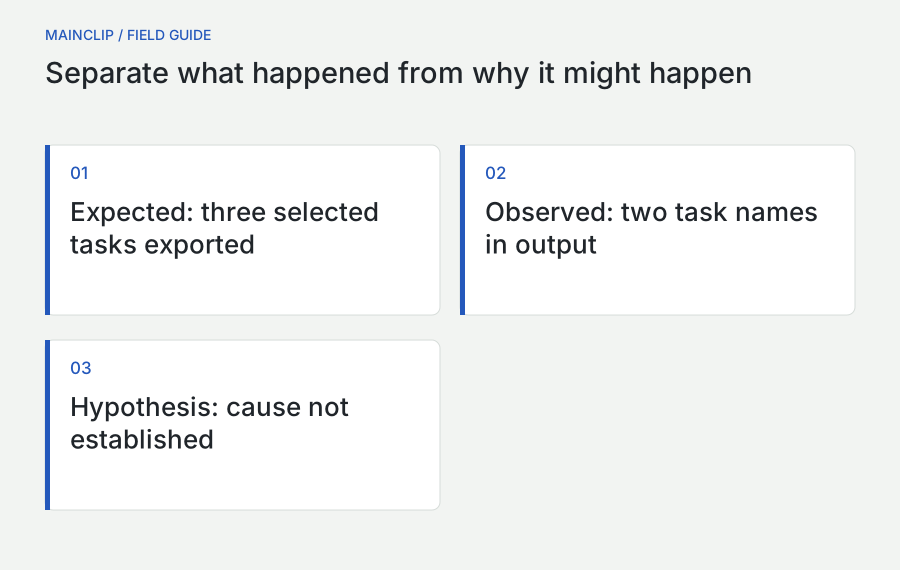
The goal is not to prove that you already know the cause. A report can be valuable while the cause remains unknown. “The export contains two rows after selecting three” is an observation. “The database loses rows” is a diagnosis that requires additional evidence. Keeping those statements separate makes it easier for an investigator to test possibilities without first undoing assumptions embedded in the report.
This guide follows a Mac reporting workflow from first observation to follow-up. The detailed examples use an invented application called Fieldboard, synthetic files, and hypothetical outcomes. They are teaching examples, not reports of faults in MainSnap, MainClip, macOS, or any customer system. The methods apply to an internal tracker, an email to support, or a public issue, with the level of detail and disclosure adjusted to the destination.
Choose a title that identifies the mismatch
Use the affected action and visible result in the title: “PDF export omits the final selected task” or “Save button is hidden at the smallest window size.” Avoid titles such as “Broken,” “Urgent problem,” or “Screenshots attached.” A good title lets someone recognize a possible duplicate without opening every attachment. It also stays useful when the report later becomes a regression test or a release-note reference.
Separate expected behavior, actual behavior, and interpretation
Write expected and actual results in separate paragraphs. The expected result should describe the outcome of the same action and starting state as the actual result. If you selected three tasks, expect those three task names in the export. Do not compare an export made with a filter enabled to an unrelated screenshot taken before the filter was applied. Alignment between the two statements is what makes the mismatch meaningful.
Explain the basis for the expectation when it is not obvious. It may come from the control label, a documented feature, an earlier working version, or a product requirement available to the team. If you are unsure whether the behavior is intentional, say that. A question about an undocumented limitation can still become a useful issue, but it should not be presented as a confirmed violation of a specification you have not seen.
| Statement type | Example from the fictional app | How to present it |
|---|---|---|
| Observation | The PDF contains two task names | State directly and attach the reviewed output |
| Expectation | The PDF should contain all three selected tasks | Connect to the selection count and export action |
| Hypothesis | The final task might be excluded during export | Label as a possibility, not a proven cause |
| Unknown | Other formats have not been checked | Say they were not tested |
Avoid mixing frustration into the technical claim. You can explain that the failure blocks a deadline without describing the application as completely unusable if another route still works. Precise impact helps the team choose urgency; broad language obscures which part of the workflow needs attention.
Build the smallest safe sequence that still shows the failure
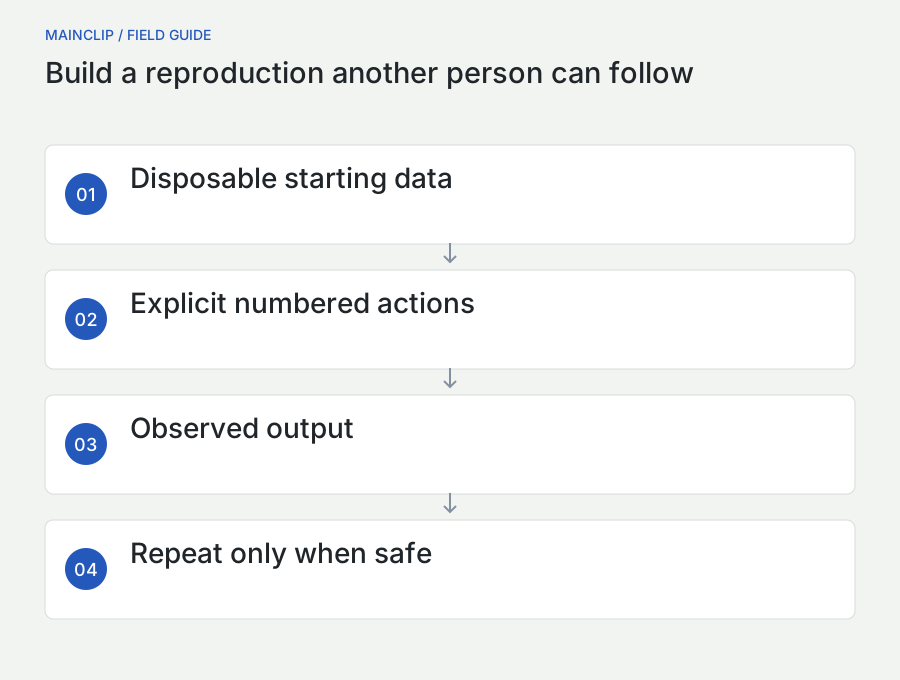
Write the sequence you actually performed, starting from a state another person can create. Replace “open the usual project” with a sample project name and its relevant contents. Replace “export normally” with the command, format, and options. The reader should not need access to your habits to understand the procedure. Number the steps so a maintainer can refer to a specific point in a follow-up question.
Reduce the example when doing so is safe and practical. If a project with hundreds of tasks fails, try reproducing it with a disposable copy containing a few synthetic tasks. Remove one irrelevant condition at a time. If the issue stops occurring, keep a note of what changed instead of declaring the problem fixed. A smaller case is valuable because it narrows the investigation, not because a large case is somehow invalid.
Keep the trigger intact
Minimal does not mean incomplete. A bug that depends on switching tabs must retain that switch in the steps. A failure involving an existing filename must include the collision condition. If you simplify away the trigger, the report becomes neat but unhelpful. Write a short precondition when several steps merely establish the same initial state, such as “A file named Weekly Tasks.pdf already exists in the test folder.”
Do not reproduce a destructive action on important files just to make the report cleaner. Use a disposable copy or report the original observation with that limitation. It is better to say “Observed once on a production document; not repeated because it could overwrite data” than to create additional loss while chasing certainty. An investigator can often design a safer reproduction from a careful account of the first event.
Record the environment that could change the result
Include the app version and build when available, the macOS version, and the relevant hardware or display arrangement. For a layout issue, add interface language, window size, display scaling, and whether the window was on an external monitor. For a file operation, add the file type and the broad destination category, such as a local folder or removable drive. Do not gather a complete machine inventory when a few fields answer the question.
Apple's System Information guidance explains where to inspect Mac hardware and software details. Read the specific fields you need and transcribe them into the report. A full system report can contain identifiers and configuration details unrelated to the issue; it should not be the default attachment to a public ticket.
Distinguish confirmed facts from estimates. If you do not know the display's exact scaling, write “external display, scaled setting; exact value not recorded” rather than guessing. If the failure began after an update but the earlier build was not tested with the same file, say it was first noticed after the update. That is useful timing information, but it is not yet a proven regression.
Use a compact environment block
A practical block contains app name, version, macOS, processor family if relevant, language, and the conditions tied to the failure. Include whether a relevant permission was granted, denied, or not checked. Avoid serial numbers, account tokens, license keys, or real user-folder paths. The environment description should make the behavior easier to reproduce without making the reporter easier to identify.
Choose screenshots that answer specific investigative questions
Before capturing, write what each image is meant to establish. One image might show the selected items immediately before export. A second might show the resulting document. A third could show an error message that appears only after a particular action. If two images establish the same fact, keep the clearer one unless their difference matters. Attachment volume does not substitute for an explicit explanation.
Apple's built-in screenshot tools can capture an area, a window, or a screen; Shift–Command–5 opens the capture controls. Refer to Apple's current screenshot instructions when choosing a method. For reporting, preserve enough context to identify the window and state while excluding unrelated desktop material.
A full-window image helps when a filter, selected tab, or project heading affects interpretation. A focused detail helps when the fault is a small clipped label. Sometimes the best evidence is a pair: one context image and one detail image with a caption connecting them. Do not imply that the detail came from a different attempt if it is simply a closer view of the same captured state.
Know when a static image is insufficient
A screenshot cannot establish the duration of a freeze or the order of a rapidly changing animation. Describe timing in text and consider whether a short recording is needed through the reporting channel's supported process. A recording introduces its own privacy review because it can capture transient notifications and unrelated actions. Use the smallest evidence set that explains the behavior, and label what it does not prove.
Prepare safe sample data before repeating the problem
Use a dedicated test folder and clearly fictional content when the issue can be reproduced that way. Give files descriptive names such as Sample Export.pdf or Layout Test.txt. Use task titles that make omissions easy to notice, such as First sample, Middle sample, and Final sample. This creates a clear relationship between the source and result without exposing real work.
Do not assume that replacing visible text removes every sensitive element. A document title can appear in the window bar, a recent-file list, an attachment filename, or an error message. Review the whole capture. If a bug depends on a specific problematic string, preserve its relevant structure with a synthetic substitute if possible. For example, test a long made-up filename rather than publishing the real client's project name.
Describe substitutions honestly
If the attached example differs from the original, say what changed. “Reproduced with a synthetic three-task project” is a strong statement only if you actually repeated the failure with that project. If you only replaced names in an illustration, label it as an edited illustration and retain the original observation in text. A reader should be able to tell which artifacts are direct evidence and which explain the situation.
Some problems require sensitive input that cannot be reduced immediately. In that case, provide a public summary and ask the maintainer for an appropriate private route. Do not upload an archive merely because its contents might be useful. Start with the minimum authorized evidence and let a focused follow-up establish whether more is necessary.
Add annotations that clarify the failure without rewriting it
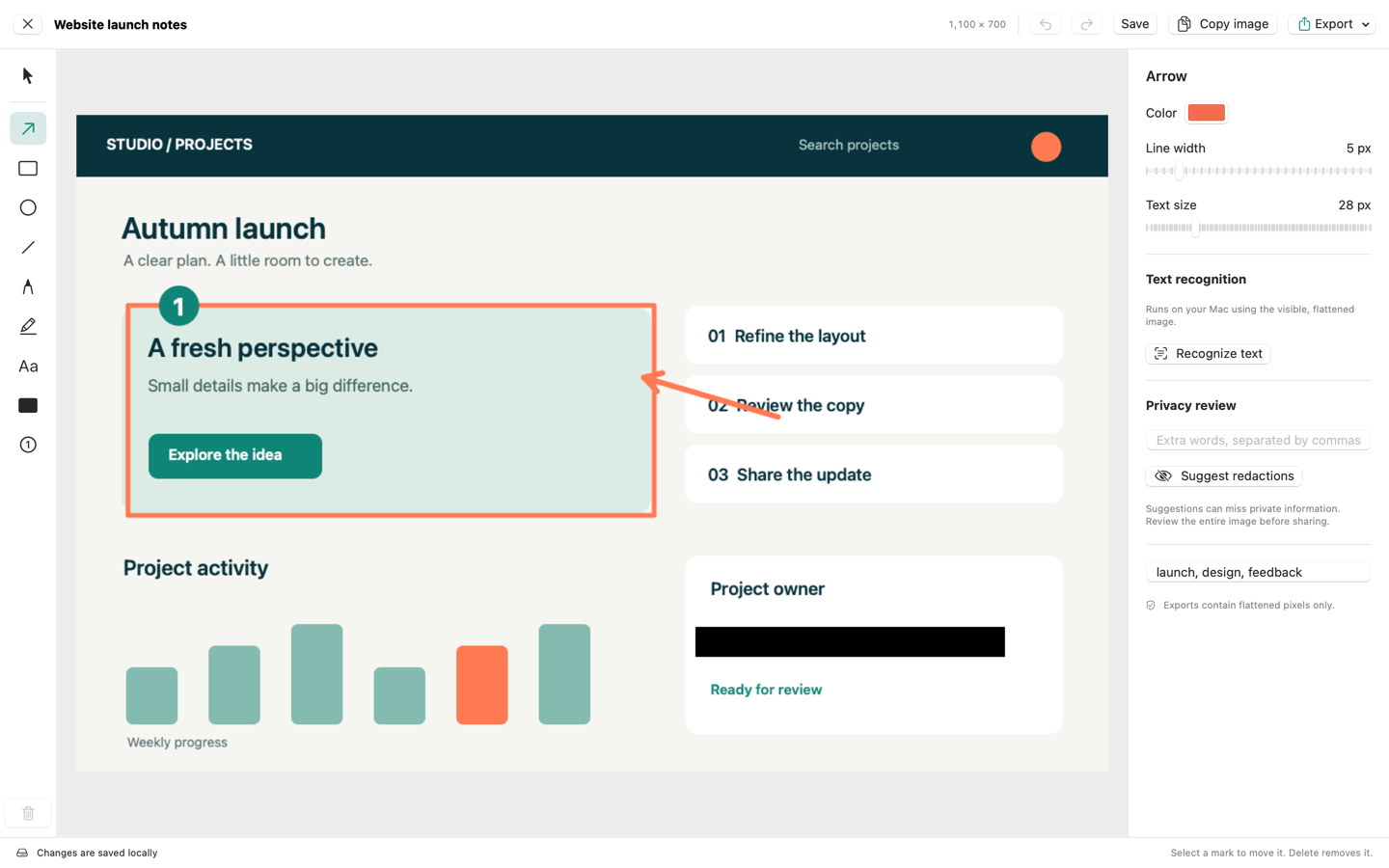
Use annotations to identify the observed mismatch. A rectangle can mark an empty region where an item should appear. An arrow can point to a clipped label. A numbered marker can connect an image to a reproduction step. Keep the underlying evidence visible: an arrowhead placed over the missing character makes a text-clipping report harder to assess.
MainSnap supports these annotation tools and exports flattened images. Its solid redaction tool is appropriate for covering information in a delivery copy; a translucent highlight is not a substitute. Review the exported image, not just the editor canvas, before attaching it. Keep original captures and editable history out of a public evidence bundle when they contain material that the reviewed export deliberately hides.
Do not draw an expected interface element directly over the actual state without distinguishing it. If you want to show a proposed position, use a separate mockup marked “suggested layout.” The actual screenshot should remain identifiable as evidence. An investigator needs to know whether a border came from the application or from your annotation tool.
Use a small evidence legend
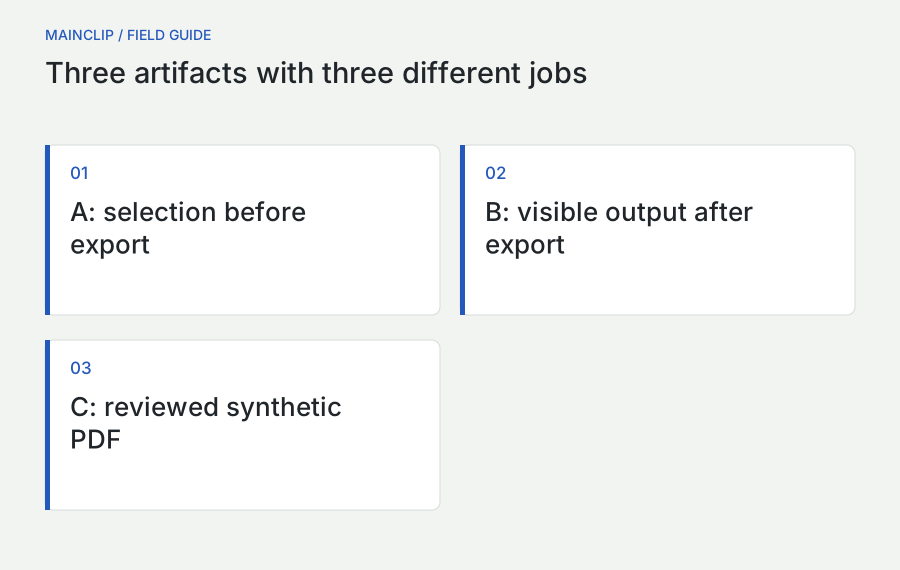
For a multi-image report, give each artifact an identifier such as A, B, and C. Caption A as the state before the action, B as the observed result, and C as the relevant detail. Refer to those identifiers in the report body. This avoids ambiguous phrases such as “the second screenshot,” which can become wrong when a tracker reorders attachments or someone adds a new image later.
Transcribe exact error text and preserve useful distinctions
Put the error message in selectable text as well as in the screenshot when the wording matters. A maintainer can search a phrase, compare an error code, or quote part of it in a follow-up. Preserve capitalization, punctuation, and numeric codes where they might distinguish messages. If you shorten the text, show where material was omitted and ensure that the omitted part does not change its meaning.
Text recognition can help obtain a draft transcription, but inspect it against the image. Similar characters such as O and zero or lowercase l and one can matter in codes and filenames. Do not silently correct what looks like a typo in the application's message. If the message really says “can not,” retain that wording in the evidence and explain it separately if necessary.
Separate messages from your explanation
Use a labeled quotation or code block for the application's text and ordinary prose for your interpretation. In a hypothetical report, “Export failed: destination is not writable” is the message; “The folder was a disposable local test folder” is context. Combining them into a rewritten sentence can remove the exact phrase a developer needs to locate in the code.
MainClip can help retrieve previously copied text or links while its monitoring is enabled, but it does not perform OCR or analyze the cause of an error. Review a recovered clip before using it: a message copied from yesterday's build may resemble today's message without being identical. The report should identify the evidence from the actual attempt being described, not a convenient older approximation.
Describe intermittent behavior without turning a small sample into a statistic
If a failure is intermittent, record individual attempts instead of writing “randomly broken.” Note the starting condition, action, observed outcome, and whether anything changed between attempts. A short log can reveal that the failure followed a particular window move or appeared only after the first successful export. It also prevents memories of several sessions from blending into a single inaccurate reproduction sequence.
For example, a clearly labeled hypothetical attempt log could record: first export succeeded, second export omitted the final task, third export succeeded after reopening the project. This is not evidence that the application has a one-in-three failure rate. It is a description of three attempts under incompletely controlled conditions. Report the count and circumstances; let broader testing establish frequency.
| Attempt field | Useful entry | Avoid |
|---|---|---|
| Starting state | Project reopened; same sample data | Normal setup |
| Change since previous attempt | Window moved to external display | Nothing, when several settings changed |
| Outcome | Save button partly outside panel | It failed again |
| Timing | Observed immediately after resizing | Always, based on one observation |
Include a timezone with timestamps when another person will correlate the report with authorized logs. Do not make exact timing claims from a screenshot's filename alone if the file may have been renamed or copied. State when you observed the event and identify any uncertainty. Precise-looking information is only useful when it reflects what you actually recorded.
Worked example: report an incomplete export
The following is a complete fictional report designed to show how the pieces fit together. Its app name, version, and outcomes are illustrative. It does not document a real test. The initial complaint was “PDF export is broken.” The revised report narrows that complaint to a specific action and a visible mismatch, while leaving the underlying cause open.
Title and environment
Title: PDF export omits Final sample after selecting all three tasks. Environment: Fieldboard training build 4.2, English interface, local test folder, one display. In a real report, replace the placeholder build with the exact version and add the macOS version you read on the affected machine. Do not copy the example's invented values into a report as if they described your computer.
Preconditions and steps
The disposable project contains exactly three task titles: First sample, Middle sample, and Final sample. No search filter is active. The destination folder contains no earlier export with the chosen name. These preconditions matter because they prevent a hidden filter or an old output file from explaining the apparent omission.
- Open the disposable three-task project and confirm that all three titles are visible.
- Select the checkbox beside each task. Confirm that the selection count is three.
- Choose Export Selected from the project actions menu.
- Select PDF and use the filename Three Tasks Test.pdf in the empty test folder.
- Complete the export and open that exact file from the chosen folder.
- Read the task titles in the resulting document and compare them with the selected source items.
Expected and actual results
Expected: The exported PDF contains First sample, Middle sample, and Final sample because all three were selected before Export Selected. Actual in this hypothetical scenario: The PDF contains First sample and Middle sample, but no occurrence of Final sample. The task remains present in the source project. No error message is displayed.
This wording avoids claiming that data was deleted from the project. It distinguishes an incomplete output from damage to the source. That distinction changes both the investigation and the impact assessment. If a real attempt also changed the project, record that as another observation and provide evidence for it; do not let the export screenshot stand in for a source-data check.
Evidence inventory
| Artifact | What it shows | What it does not establish |
|---|---|---|
| A: selected-tasks.png | Three selected task titles before export | The export implementation or internal selection state |
| B: export-result.png | Two titles in the resulting document | Whether all pages or formats behave the same way |
| C: Three Tasks Test.pdf | The reviewed synthetic output file | That unrelated production documents are safe or affected |
In a real report, inspect the complete output before concluding that a title is absent. It could have moved to another page or appeared below the visible region. If your observation is limited to the first page, say so. A screenshot of page one is evidence about page one, not proof that the entire document contains no additional content.
Impact, scope, and follow-up
Impact: The reporter must inspect exported task lists before sharing them. Scope: Only the PDF route and the synthetic project described above were checked. Workaround: None confirmed. Open question: Does the omission depend on selecting the last task, or on having three tasks? These statements help prioritize a next experiment without pretending that it has already been performed.
A maintainer might ask for a two-task example or a different selection order. Perform that follow-up only with disposable material, then add a dated comment describing the changed condition and the result. Keep the original reproduction visible. If the new information changes the understanding of the bug, explain how rather than rewriting the first report so completely that earlier discussion no longer makes sense.
Worked example: report a layout problem at a specific size
A layout report needs different context from an export report. Imagine the fictional Fieldboard settings window hides part of a Save button when a long interface translation is used. A tight screenshot of the button proves that its visible area is clipped, but it does not establish the window size, selected settings page, or language. Capture a context view as well as a detail, and record the conditions in text.
A useful title would be “Save button clipped in the compact settings window with the German interface.” The steps should begin with the relevant language setting and a known settings page, then describe how the window was resized. If you measured the window, include the measurement and the method. If you only resized it to its smallest permitted width, state that instead of inventing pixel dimensions.
Compare one variable at a time
To investigate responsibly, compare the same page at the same size with a second language, or compare the same language at two widths. Do not change language, display scaling, theme, and window size together and then attribute the difference to translation. A small comparison table can show which combinations were actually tried and which remain unknown. Empty cells should say “not checked,” not imply that the problem is absent.
The expected result should describe usability: the full button label and actionable area remain available at the application's permitted window size. The actual result should name what is missing or inaccessible. A cropped label and a button that cannot be activated are related but different observations. If keyboard activation works while pointer activation does not, report both only after actually checking them.
Avoid redesigning the interface in the evidence
You may suggest a larger minimum width or a wrapping label, but keep that suggestion separate from the reproduction. The maintainer may choose a different fix. The bug report's durable value is the documented failure condition and its impact on the task. A specific proposed design can be helpful context; it should not become the only definition of what a successful correction must look like.
Make the evidence understandable without opening every image
Write the important observation next to the attachment. “Artifact B shows only First sample and Middle sample in the exported document” gives the reader useful information before the image opens. It also helps when a tracker displays a small thumbnail or the reader cannot access the image immediately. The report should remain coherent as text, even though the screenshots provide additional visual evidence.
The W3C informative-image guidance focuses text alternatives on the information an image conveys in its context. For a bug screenshot, describe the visible discrepancy rather than every decorative element. A concise description such as “Save label clipped at the right edge of the settings panel” is more useful than “Screenshot of my Mac.”
Use filenames that describe purpose and sequence, but do not rely on filenames as the only explanation. A tracker may rename attachments or present them out of order. Put the artifact identifier in the caption and refer to it in the body. If a redaction hides context that would otherwise help investigation, state that the region was removed and describe its non-sensitive role, such as an account identifier.
Check the actual uploaded image
After attaching a reviewed image, inspect its presentation in the report draft. Small text may become unreadable in the inline preview even when the original file is sharp. If the platform provides an original-size view, ensure that the reader can reach it. When the message text itself matters, include its transcription regardless. Do not assume that an image-only ticket becomes accessible simply because its filename is descriptive.
Fit the report to the receiving issue tracker
Read the project's reporting instructions before submitting. A maintainer may request a particular version block, reproduction project, or category. Follow that structure where it applies, but do not fill unknown fields with invented values just to make the form look complete. If a required field does not fit the problem, explain the limitation in the closest relevant text field.
GitHub supports creating issues through a repository's Issues area and may present templates or forms chosen by the project. Its issue-creation documentation describes the available entry points. Use the project's chosen route so the report arrives with the context and categorization the maintainers expect.
For teams configuring their own reports, GitHub's issue-form syntax supports structured input such as text fields, larger text areas, dropdowns, and checkboxes, including required fields where applicable. A practical form can ask separately for reproduction steps, expected behavior, actual behavior, and environment. Keep optional evidence optional when a screenshot would add nothing.
Ask questions that produce useful answers
A field labeled “Describe the problem” often receives a general complaint because it offers no structure. “What happened after step three?” encourages an observation. “Which app version is affected?” encourages a concrete environment detail. Do not ask a reporter to confirm that they tried every possible troubleshooting step. Require only checks that are relevant, safe, and proportionate to the problem being reported.
GitHub also documents supported attachment workflows in its file-attachment guide. Review the destination's supported formats and limits when preparing evidence. Prefer a small reviewed set of relevant files over a general-purpose archive. If the issue is public, assume that anything you attach or quote may become accessible beyond the immediate maintainer.
Check related reports without erasing the differences
Before opening a new issue, search the project's existing reports using the affected action, visible symptom, and a distinctive phrase from any error message. Similar titles are a starting point, not proof that two reports describe the same cause. An export that produces an empty file and an export that omits one task may share a component while needing different reproduction cases.
Compare the existing report's starting conditions with yours. Does it involve the same format, selection state, interface language, destination type, and app version? You do not need all those details for every bug; compare the conditions that plausibly affect the observed behavior. If the earlier report lacks them, a concise comment with your bounded reproduction can add value without claiming an exact match.
Contribute evidence instead of only agreement
A comment saying “same here” tells maintainers that another person is affected, but it may not help them reproduce the problem. A stronger comment identifies the build and the condition you confirmed: “I observed the same missing final row with the synthetic three-item setup described above; my destination was a local folder.” Use that wording only when it accurately describes a real check. Otherwise explain the difference in your setup.
If the existing issue is closed, read the resolution before deciding what to do. It may name a fixed version, an intentional limitation, or a workaround. A failure observed on an older installed build does not show that a newer fix failed. Conversely, a similar symptom on the fixed build deserves a clear report of the new conditions. Link the related issue so investigators can compare them without replacing the new evidence with an assumption.
Preserve distinct failure conditions
When the behavior is materially different, open a separate report and explain the relationship briefly. For example, one issue may concern truncated labels while another concerns a button that cannot receive keyboard focus. Both affect a settings panel, but their evidence and success criteria differ. Combining them into one vague “settings problems” ticket can make a partial fix look complete.
Keep discussion in the project's chosen place once the relationship is clear. Repeating the same attachments across several unrelated tickets makes it harder to know where new findings belong. A focused link plus a short description of the difference gives maintainers a usable map of the evidence while keeping your own report self-contained.
Describe impact and workarounds without assigning unsupported severity
Impact explains what the user cannot complete and what effort or risk the failure creates. A clipped label that remains understandable may be inconvenient. A hidden confirmation button may block the task. An incomplete export may require manual verification before every delivery. Describe those consequences specifically and let the team's severity policy translate them into a label.
A workaround is a route you have actually used successfully under the relevant conditions. “Try restarting” is a suggestion, not a confirmed workaround. If restarting helped once, say exactly that. If the alternate route avoids a feature or loses formatting, include the tradeoff. A workaround that silently changes the output can cause another problem when a support reader repeats it.
Keep urgency and breadth distinct
A problem affecting one person can be urgent if it blocks critical work. A cosmetic problem affecting many people may be broad but less urgent. Report what you know about each dimension rather than using “everyone is affected” to communicate personal urgency. If your knowledge is limited to your own Mac, state that scope. A well-bounded report is easier to combine with other reports later.
Include a safe stopping point when continuing could damage data or create repeated side effects. For example, stop retrying an operation if it may create duplicate submissions or overwrite a file. Record the current state and wait for guidance through the appropriate channel. More repetitions are not automatically better evidence when each attempt changes the underlying situation.
Keep your working material separate from the submitted evidence
Create a small folder for the report with the draft, reviewed attachments, and any synthetic input. Keep raw captures elsewhere if they contain information you removed. An evidence inventory can list the filename, purpose, related reproduction step, and whether it is ready for public sharing. This prevents a similarly named original from being attached in place of the redacted export.
MainSnap can capture an area, screen, or chosen window and prepare annotated exports. Its Share control uses the native macOS sharing interface for available services, but choosing a service is still a deliberate action. For a tracker that needs exact filenames or file types, exporting and attaching the reviewed file gives you an explicit artifact to inspect. Do not assume that sharing an image also includes the written reproduction steps.
MainClip can retain useful copied report text, links, or supported images locally while monitoring is active. Tags and search can help retrieve the relevant material during follow-up. Keep the canonical report in the tracker or your draft file, however. Clipboard history is a working convenience, not a record of which version of the evidence was actually submitted, and it provides no AI diagnosis, OCR, or cloud collaboration.
Use a short handoff note
A handoff note can say which files were submitted, where the issue lives, and which questions remain open. It need not contain credentials or a copy of every private conversation. If another teammate takes over, they should be able to distinguish reviewed public evidence from private working material without inspecting every file and guessing from its name.
Follow up with new evidence and retest the original failure condition
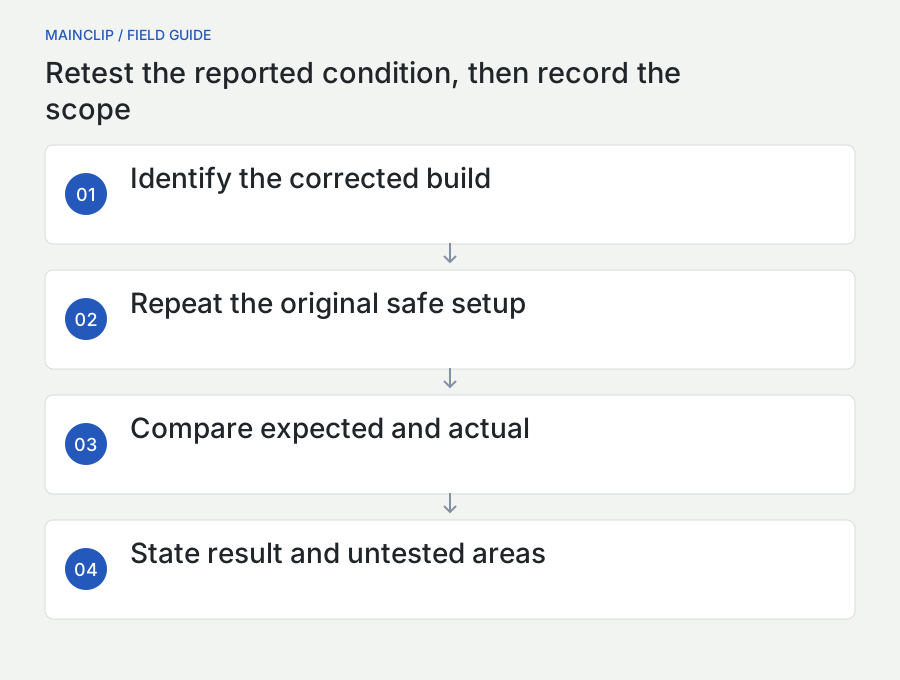
When a maintainer asks for another check, describe what changed and what stayed the same. “Retested on the new build with the original three-task sample and the same export options” is more informative than “works now.” If you used a different file or reset settings, mention that difference. It may explain why the behavior changed independently of the code fix.
Retest the specific failure condition first. For the hypothetical export bug, confirm that all three selected task names appear in the output and that no unrelated task was added. Then perform a small relevant adjacent check if requested, such as exporting a single selected task. Do not announce that the entire application is bug-free because one reproduction passed.
Keep unresolved questions visible
If the maintainer fixes the export but you notice a separate layout issue, create or reference a separate report rather than replacing the original problem. If the original behavior improves but still fails intermittently, provide the new attempt details. Preserve the distinction between “not reproduced during this retest” and “proved impossible.” The first is an observation; the second is usually beyond what a short manual check can establish.
A useful closing comment records the tested build, the sample or setup, the result, and any remaining limitation. For example: “With the synthetic three-task project on the stated build, all three selected tasks appeared in the PDF. Other export formats were not checked.” That leaves a clear historical record without inflating the scope of the verification.
Practice with a harmless example before reporting under pressure
Choose a disposable workflow and write a practice report about a clearly labeled hypothetical mismatch. You do not need to manufacture a real fault or alter software. The exercise is to organize evidence, not to create a convincing accusation. Keep the draft private and mark every invented outcome so it cannot be mistaken for an actual product report.
Exercise one: remove every cause claim
Read the draft and underline statements about why the failure happens. For each one, identify the supporting evidence. Move unsupported explanations into a Hypotheses section or remove them. Replace “the app forgets the selection” with the observation you can substantiate, such as “the output contains fewer items than the visible selection count.” The report should still explain the problem after those cause claims are removed.
Exercise two: give each attachment a job
For every image, write one sentence beginning “This establishes…” and another beginning “This does not establish…”. If two images have identical jobs, decide whether both are necessary. If an important claim has no supporting text or artifact, either gather the appropriate safe evidence or narrow the claim. This exercise helps you avoid both excessive attachments and confident conclusions drawn from incomplete views.
Exercise three: perform a disclosure pass
Inspect the report as a potential public reader would see it. Check filenames, image edges, quoted messages, links, account labels, and any embedded document properties relevant to the attachment. Confirm that the text refers to the reviewed exports. If you cannot determine whether an artifact is suitable to share, leave it out and ask for a private route rather than treating uncertainty as permission.
Finish with a compact pre-submission review: the title names the mismatch, the steps begin from a reproducible state, expected and actual results align, the environment is accurate, and the evidence is readable and appropriately disclosed. State what you did not test. A report with honest boundaries gives the investigator a stronger starting point than a dramatic screenshot accompanied by guesses.